
Grand Bazaar doesn’t detect a PC controller? Follow the input from Steam


 2 min. read
 Updated on
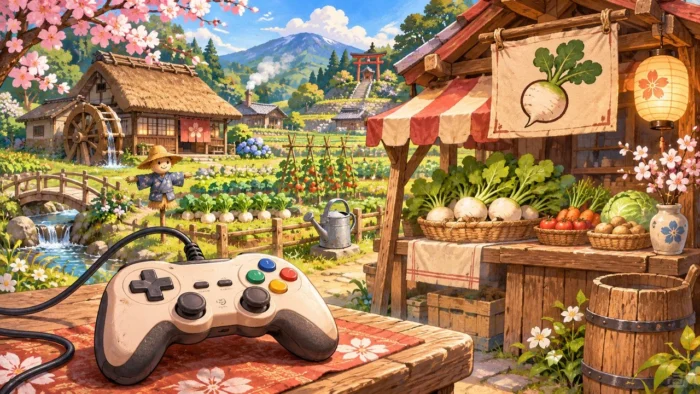
Start the game with one controller already connected. Test the main menu before loading your farm. If the menu works, try movement, selecting a tool and navigating inventory separately. A single failed action is worth isolating before changing the whole setup.
Compare the device test with the game
Open Steam’s controller settings and test a button and both sticks. If nothing registers, try a direct USB port and a data cable, then compare in another game. A charge light alone does not establish that the PC is receiving button input.
If Steam sees the pad, open Grand Bazaar’s Properties > Controller and note its current override. Test the default, then try one alternate Steam Input state, fully restarting the game between attempts. Close any separate remapping utility during the comparison. If support is needed, Marvelous requests details of the issue and settings. Give the controller model, connection type and first menu or action that failed.
Related reading
- How To Fix Discount Customers Waiting At Checkout Queue (Quick Fix)
- How To Fix Discounty Customers Stuck Not Moving (Quick Fix)
- How To Fix Discounty Stuck In Cutscene After Bar Scene (Quick Fix)
- How To Fix Discounty Animations Stuck At Scanner Bug (Easy Fix)
- How To Fix Dawn Of War Definitive Edition Not Launching (Quick Fix)



Improve this guide
User forum
0 messages