
Skyrim SE Not Launching, Responding: How to Fix
If you're facing Skyrim SE not responding errors, check if your graphics driver are updated


 5 min. read
  Updated on
A lot of players are complaining because Skyrim SE is not starting on their PC. When they try to start the game and click the Play button in the Steam Library, nothing happens and the game won’t start.
The following Skyrim Special Edition errors are making the game unplayable and a lot of players are currently complaining about them.
For example, some of these issues are Skyrim SE not responding at startup, or the game is not starting. When you try to start the game nothing happens or you receive an error.
Also, players encounter specific issues with the game such as Skyrim SE not launching with mods, on full screen, or Skyrim SE not launching SKSE when the tool is not working.
Before trying to fix your issues, you need to make sure that you meet the minimum system requirements of the game because this version of the game will require a lot from your PC.
If you don’t meet the minimum system requirements, you need to upgrade your PC and see if you encounter the same issue again.
Why is my Skyrim SE not launching?
There are different reasons why you’re not able to start the Skyrim SE gameplay, and the most essential ones are due to corrupted game files on Steam or outdated graphics drivers.
It’s also possible that your PC doesn’t have the minimum system requirements or you run resource-consuming background programs.
System Requirements
➖ MINIMUM:
-
- OS: Windows 7/8.1/10 (64-bit Version)
- Processor: Intel i5-750/AMD Phenom II X4-945
- Memory: 8 GB RAM
- Graphics: NVIDIA GTX 470 1GB /AMD HD 7870 2GB
- Storage: 12 GB available space
✔️ RECOMMENDED:
-
- OS: Windows 7/8.1/10 (64-bit Version)
- Processor: Intel i5-2400/AMD FX-8320
- Memory: 8 GB RAM
- Graphics: NVIDIA GTX 780 3GB /AMD R9 290 4GB
- Storage: 12 GB available space
How to fix Skyrim SE not launching?
Table of contents:
- Update the graphics card driver
- Verify the integrity of game files
- Remove background application
- Run the game as an administrator
- Disable the game mods
- Reinstall the game
1. Update the graphics card driver
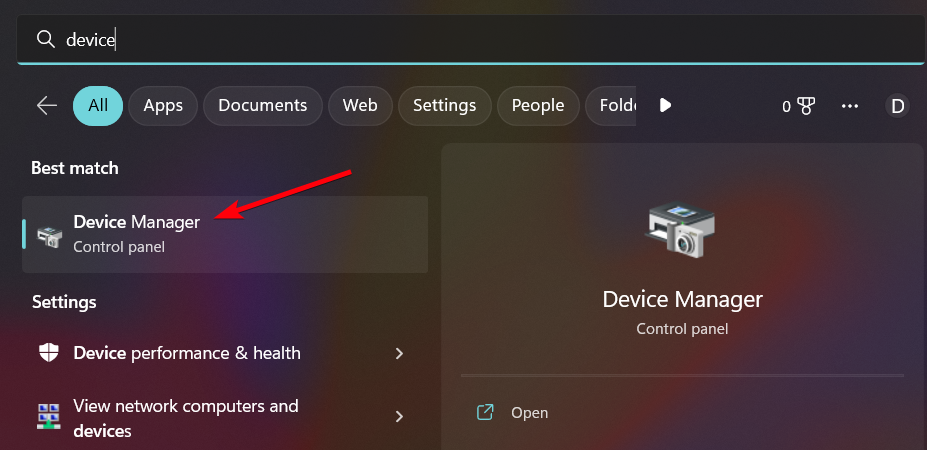
- Type Device Manager in the search bar and press Enter.
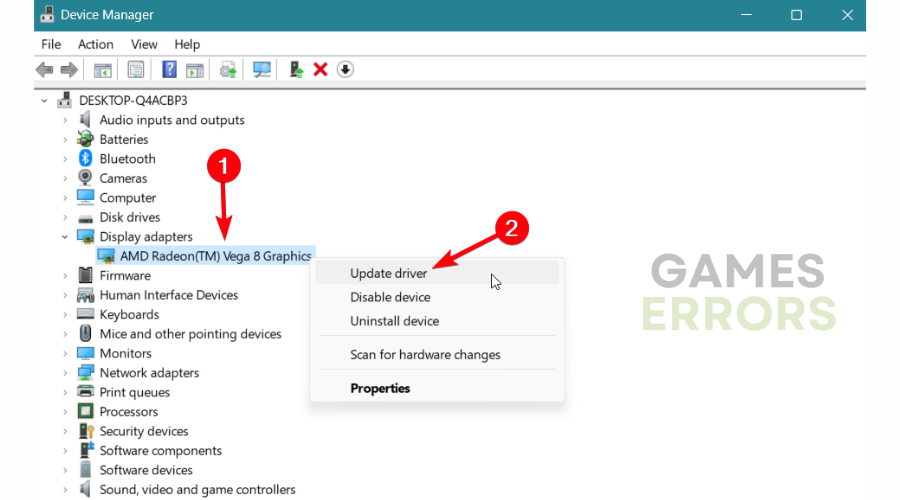
- Go to the Display drivers and right-click on your graphics driver.
- Click on the Update driver option.
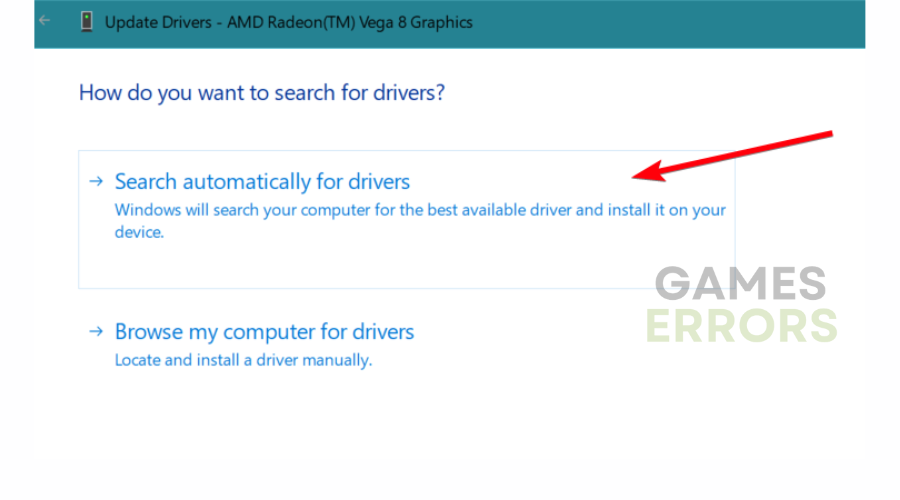
- Pick Search automatically for drivers.
- Restart your PC after the process is complete.
If you need a better alternative to update any drivers automatically in a short time, PC HelpSoft is the go-to software:
- Download and install PC HelpSoft on your PC.
- Launch PC HelpSoft to start the system scanning.
- After the scan is done, select Update All Drivers Now to start the process.
- Check if your game is still not launching.
2. Verify the integrity of game files
- Open Steam on your desktop and go to Library.
- Go to the games, right-click on XCOM 2, and select Properties.
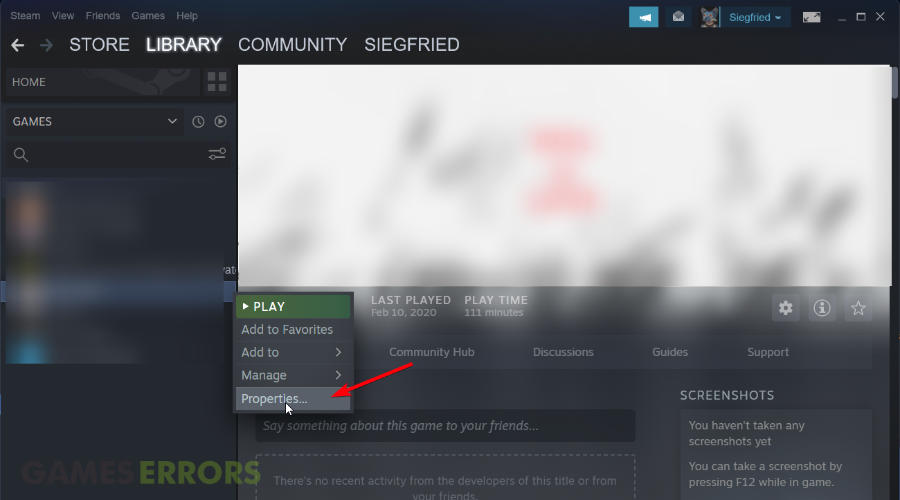
- Next, select the Local Files option.
- Now, just select Verify integrity of game files.
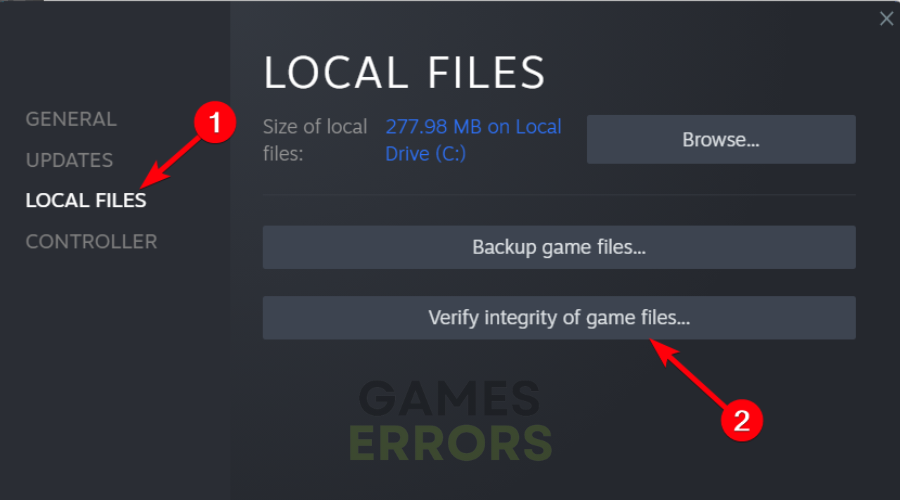
- Repair the corrupted files if there are any.
3. Remove background applications
- In the Windows search bar, type Task Manager.
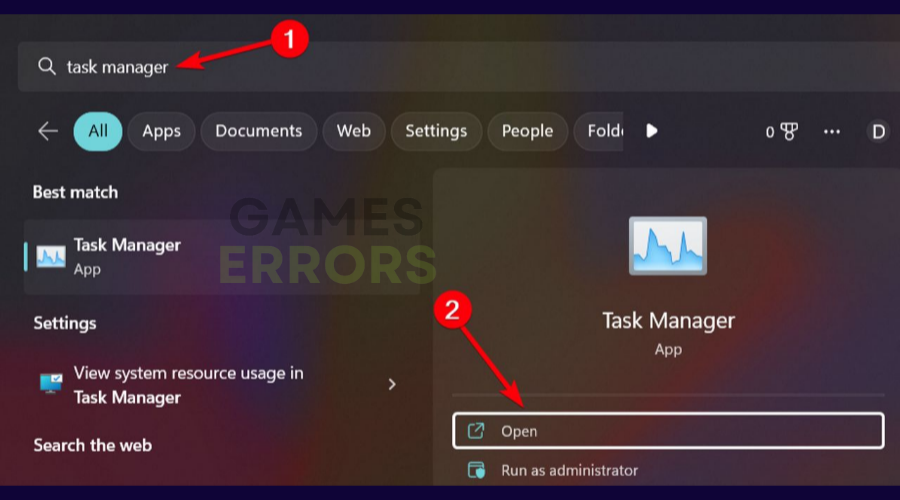
- Go to the Processes tab and click on the Memory column to filter by size.
- Right-click on unnecessary programs and select End task.
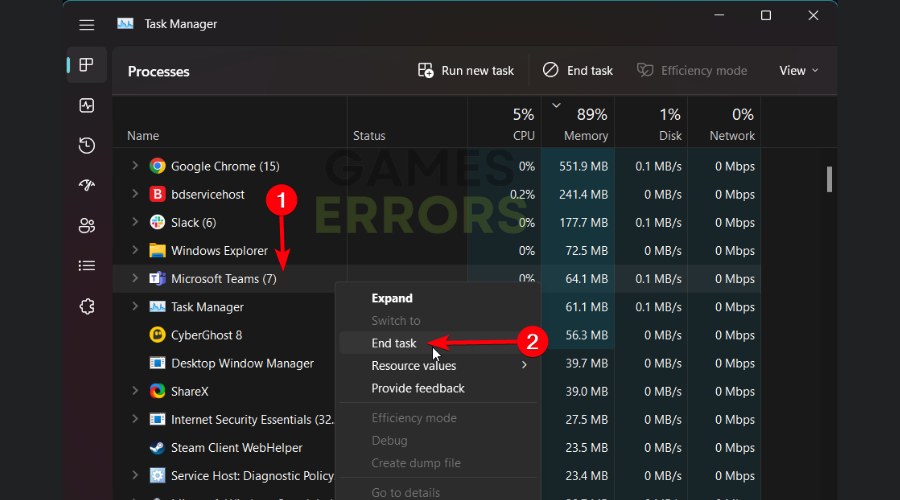
- Repeat the process for other consuming applications.
4. Run the game as an administrator
For this solution, you might need to set both the Steam client and the game copy as an administrator in order to fix the launching issue. This is how to proceed with it.
- Right-click on your Steam shortcut and select Properties.
- Go to the Compatibility tab and check Run this program as an administrator.
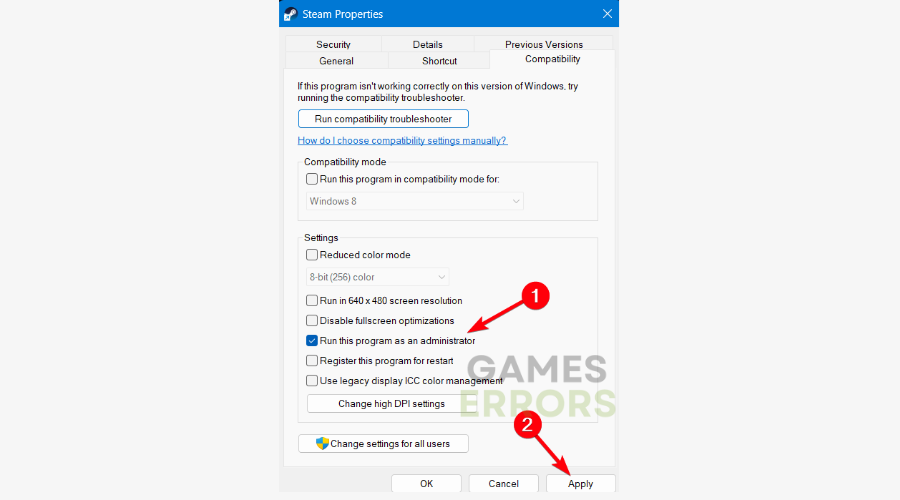
- Select the Apply button and click OK.
- Afterward, open the Steam app and go to Library.
- Right-click on the game and select Properties.
- On the Local Files tab, click Browse local files.
- In the opened window, right-click on the game file and select Run as administrator.
5. Disable the game mods
Another practical method that worked for other players is to delete all the game mods you have installed since the launching issue occurred.
Afterward, in case the game is now starting without issues, you can try to enable back the mods and see if the launching error appears again. In that way, you find out the exact cause of Skyrim SE not responding on loading screen.
6. Reinstall the game
The last but not least method to fix your game is to uninstall it from your PC and then install it fresh.
As a result, it can resolve your launching errors due to game file restoration and erasing corrupted cache that may cause Skyrim SE to not respond.
Other solutions that might help:
- Try to run the game in compatibility mode
- Reinstall Visual C++
- Try to change Skyrim SE’s video setup to borderless and window mode. This has been reported to help many.
That’s about it. Let’s hope that by now you managed to fix all your Skyrim Special Edition not launching issues and that you are enjoying the game. After you fix it, you can as well learn how to make Elder Scrolls Online download faster.
If you still encounter some issues, and you are unable to fix them, or you don’t know how to apply our workarounds, reach out in the comments below to get your answer.



Improve this guide

User forum
27 messages