
Age of Wonders 4 DirectX Error: How To Fix
If you're experiencing a DirectX Error in Age of Wonders 4, we have the best fix for that issue. 💥


 4 min. read
 Updated on
Copy the first DirectX error and note whether Age of Wonders 4 fails at startup or only while loading a particular realm. Compare a separate unmodified realm and record the adapter and driver used for the failed run.
If Windows Security reports a blocked file, check its timestamp and path in Protection History. For game-specific information, see the publisher’s Age of Wonders 4 PC listing.
Age of Wonders 4 is a remarkable turn-based strategy game. It offers many customization options that make the potential for replayability nearly endless. What can stop you from enjoying this great game? You might be one of the unlucky players hit by a DirectX error in Age of Wonders 4 while trying to play the game. We acted quickly and created this guide to help you solve the problem effectively.
Why do I have DirectX Error in Age of Wonders 4?
We highlight some potential reasons why you may get DirectX error when starting Age of Wonders 4:
- incompatibility of your PC with the recommended specifications
- outdated or corrupted GPU driver
- corrupted or missing game files
- corrupted system files
- DirectX-related issues
- unnecessary apps running in the background
How do I fix a DirectX Error in Age of Wonders 4?
First, start with these simple steps before moving on to anything more complex:
- Check if your PC meets the recommended system requirements.
- Run the game as an administrator.
- Close any heavy tasks running in the background like P2P, Office, Photoshop, VMware, etc.
- Restart the game or your PC.
If you have followed all the previous steps but are still experiencing a DirectX error, try the following tips:
1. Update your GPU driver
We recommend updating your GPU driver to resolve the DirectX error in Age of Wonders 4. Outdated GPU drivers can lead to the game crashing, freezing, lagging, or failing to launch. Do the following:
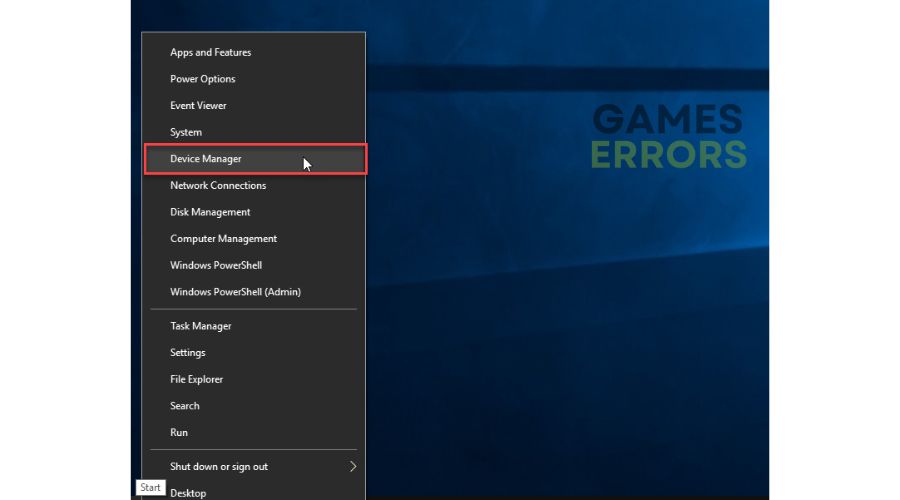
1. Right-click on the Windows Start Menu and choose Device Manager.
2. Double-click to expand Display adapters. Right-click on your GPU and click Update driver.
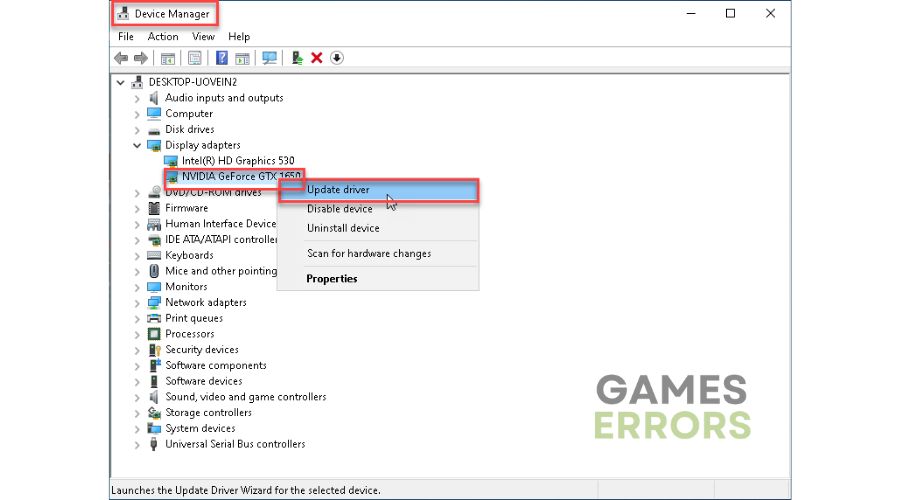
3. Choose Search automatically for drivers and wait to complete the update.
However, if you’re looking for a more convenient process of updating system drivers, we recommend using PC HelpSoft. This efficient tool easily locates and installs all the genuine drivers for your hardware, saving you valuable time that would have been spent updating them manually.
2. Repair game files
1. Launch the Steam client and go to the LIBRARY.

2. Right-click on Age of Wonders 4 and select Properties from the context menu.

3. Select LOCAL FILES from the menu and click on Verify integrity of game files.

4. Wait for Steam to complete the verification and repair process before restarting your PC.
5. Upon restart, launch the Age of Wonders 4 to check if the DirectX error is gone.
3. Check the DirectX status
Time needed: 1 minute
Maybe you are using an outdated DirectX version on your PC. We recommend running the DirectX Diagnostic Tool by following the following steps:
- Open the Run dialog box
Type; “dxdiag” and press Enter to open DirectX Diagnostic Tool.

- Check DirectX version
Check your DirectX version in the System tab.

- Download the newest DirectX if needed
If you have a lower than DirectX version 12, download the latest version from the official Microsoft website. We also recommend that you install .NET Framework and VCRedist.
4. Check and repair system files
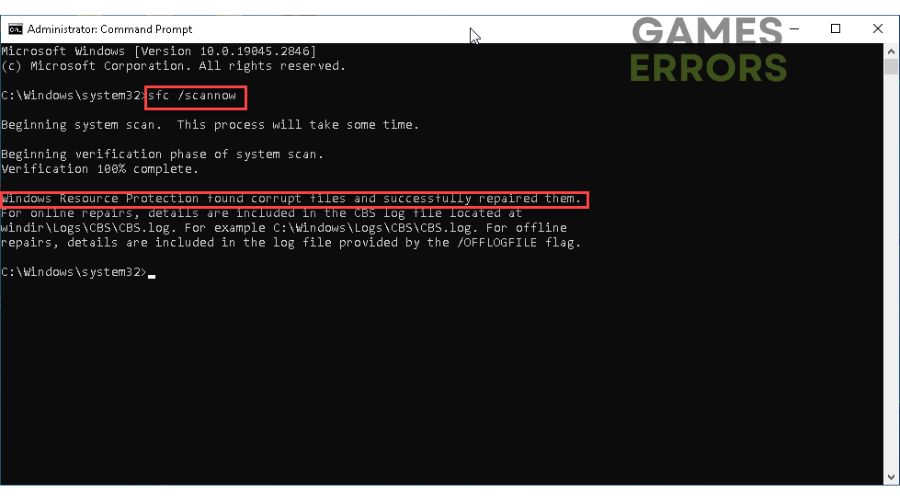
The System File Checker (SFC) is a Microsoft utility tool that allows you to scan for corrupted system files and restore them if necessary. Do following:
1. Click on the Windows search bar and type cmd.
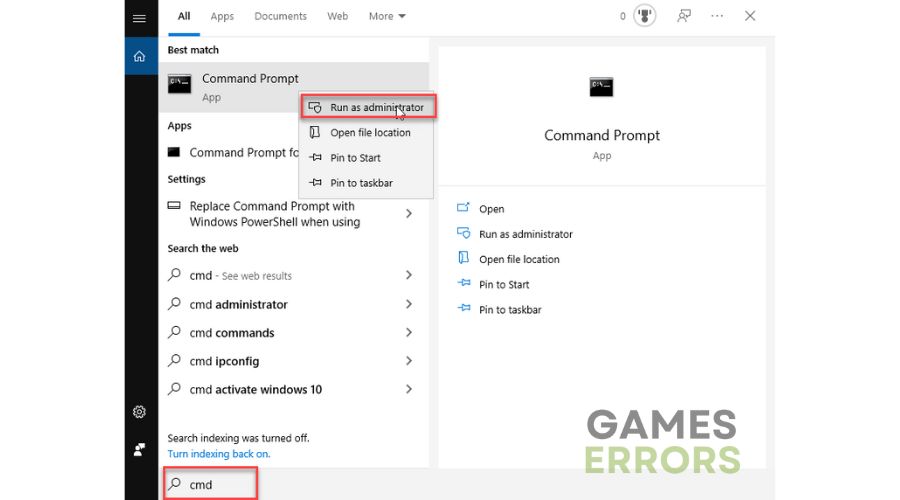
2. Right-click on the Command Prompt and choose Run as administrator.
3. Type; “sfc /scannow” and press Enter to execute the System File Checker process.
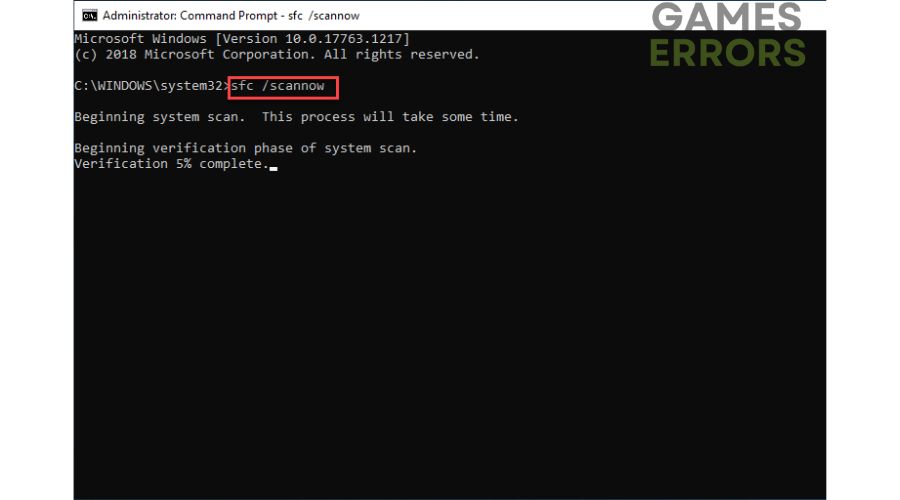
4. Now, wait until the process completes, and once it is done, close the command prompt window and reboot your PC.
Extra steps:
Do you still have a DirectX error in Age of Wonders 4? Here are some additional options to consider:
- Update Windows to the latest version.
- Update Age of Wonders 4.
- Ensure to use discrete GPU instead of integrated graphics (IGP) – disable IGP in Device Manager.
- Perform clean boot (Ctrl+Shift+Esc and Disable all unnecessary apps from Startup).
- Reinstall Age of Wonders 4.
Conclusion
We have endeavored to offer the best tips if you have DirectX Error in Age of Wonders 4 . Share in the comments section below which solution works for you or if you have a more effective one that we have not mentioned.



Improve this guide




User forum
0 messages