
Astroneer Failed to Connect To Host: How to Fix
Join your friends on Astroneer by fixing the Astroneer failed to connect to host problem on PC with solutions discussed in this guide ⤵


 4 min. read
 Updated on

Ask the host how the session is running before changing Windows networking. A peer-hosted game, a self-hosted dedicated server and an officially partnered dedicated server can have different platform compatibility. System Era lists dedicated servers that support cross-play between Steam, PlayStation, Xbox and the Microsoft Store PC version.
However, just like with any other online game, Astroneer does come with its own set of problems, such as Astroneer failed to connect to host. This ruins your fun and has you waiting almost endlessly at times.
If you are currently experiencing this issue, don’t worry. You are not alone. Keep reading our troubleshooting guide to find out why this even happens in the first place and how to fix it.
Why Has Astroneer Failed To Connect To Host?
There are a couple of reasons you could be seeing an Unable to connect to host message when you try to play Astroneer. Many players have reported this issue when they try to join their friends in a multiplayer game. Some of the common reasons why this issue pops up include:
- Network connectivity issues
- A firewall or antivirus blocking the connection
- Outdated game version
- Server maintenance or downtime
- Incorrect in-game settings or configurations
How To Fix Astroneer Failed To Connect To Host?
Before jumping into the solutions listed below, ensure you complete the following preliminary checks to see if you can fix the issue:
- A router reboot can work to fix Astroneer failed to connect to host
- Restart Astroneer
- Whitelist the game in your firewall
- Check server availability
- Use a VPN. We recommend using Express VPN.
If you are still experiencing this issue, try the steps below to see if you can fix the issue.
For a dedicated server, confirm the host address, port, platform support and installed build with its operator. If only one friend cannot join, have another player on that same platform try the same server. If no one can join, start with the server operator.
2. Update your network driver
Time needed: 4 minutes
An outdated network adapter driver can result in connection issues. That is why we recommend keeping your PC drivers up to date. To update your network adapter driver, you can either do it manually via the Device Manager or head to the manufacturer’s driver download page.
- Click the Start button and Select “Device Manager” from the search results.
- In the Device Manager window, locate the “Network adapters” drop-down menu.
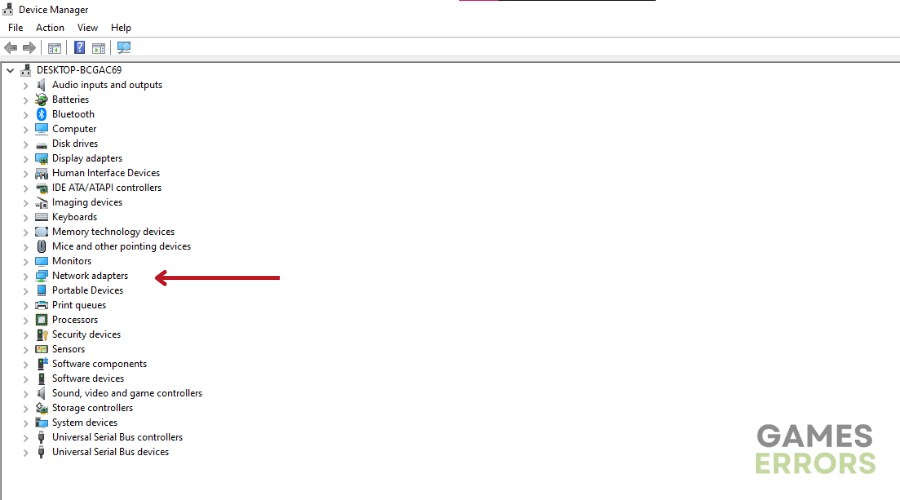
- Choose the appropriate Network Adapter from the list.
- Right-click on the selected adapter From the drop-down menu, choose “Update Driver.”
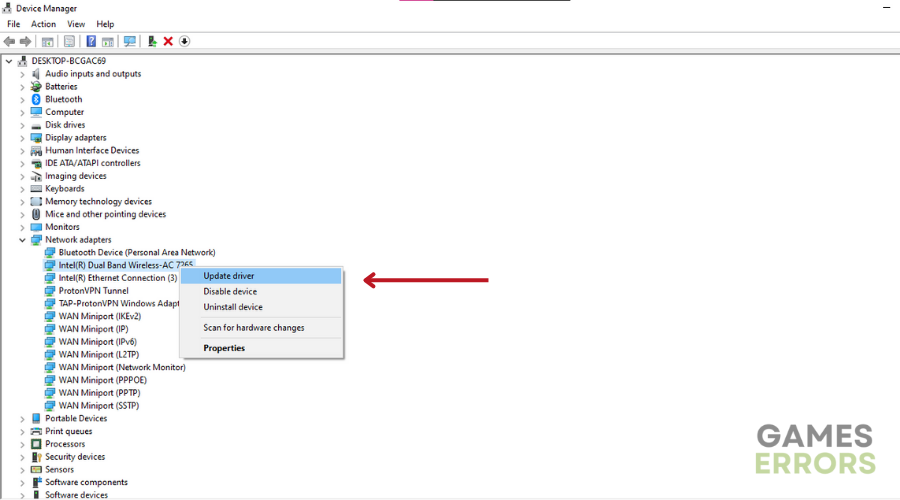
- Click on “Search Automatically for Updated Driver Software.”

- Follow the instructions provided on the following screens to complete the updating process.
- Finally, restart your computer to apply the changes.
📌 Ensuring that you get the correct drivers for your device type and model can take up a lot of time that can be used to play Astroneer error-free. That is why we recommend using PC HelpSoftdater, a tool that saves you time by scanning your computer for outdated, corrupted or missing drivers.
Compare a supported session
Try another permitted server using the same platform and build. If one host alone fails, give its operator the exact message and time. Keep Windows Service Host processes running: they host system components and stopping one is unrelated to establishing a supported Astroneer cross-play route.
Related Astroneer Articles:
Conclusion
Persistence and a willingness to explore various solutions are essential when dealing with connectivity challenges in online gaming. By following the steps above and conducting preliminary checks, you can increase your chances of resolving the “Astroneer failed to connect to host” issue and dive back into the immersive universe of Astroneer without interruptions. So, gather your friends and jump into the world of Astroneer. Happy gaming!



Improve this guide

User forum
0 messages