
Squad Crashing, Freezing, Not Launching: How to Fix
Squad keeps crashing, freezing or even fail to launch or respond? Don't worry and see our fixes ⚙️


 3 min. read
  Updated on
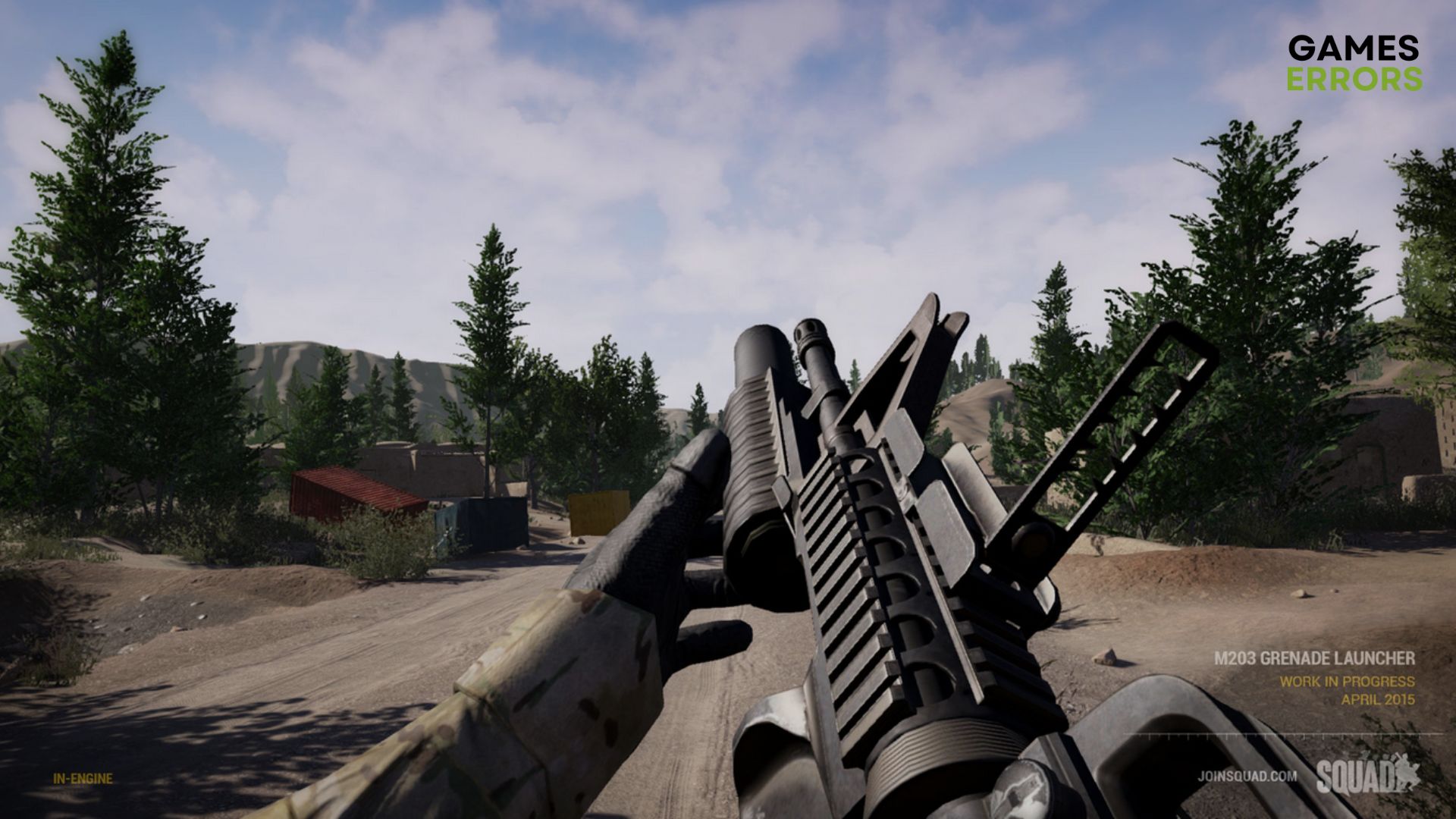
Squad was released on Steam and is a multiplayer first-person shooter that aims to capture combat realism through communication and teamplay.
The most common Squad glitches that players reported until now are crashes, freezing, launching, and performance Issues.
Why does Squad keep crashing?
The most common reasons why Squad keeps crashing are due to outdated graphic drivers or your PC doesn’t respect the minimum specs of the game.
Other causes may imply too many apps running in the background, your antivirus software or firewall that interferes with the game, or corrupted game files.
The most common crashes are the following:
- Squad crashing when joining a server
- Squad crashing on startup
- Squad crashing.mid game
In addition, users claimed that the game won’t launch or is otherwise unresponsive. Don’t worry if you’re experiencing one of these issues. We devised the simplest solutions that will fix all of these.
How do I fix my Squad from crashing, freezing, or not launching?
1. Repair the game files
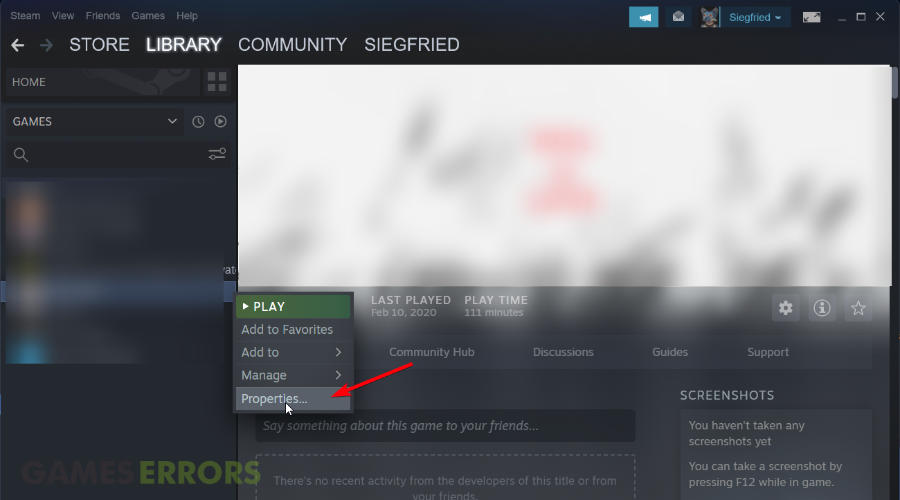
- Open Steam.
- Right-click on Squad and go to Properties.

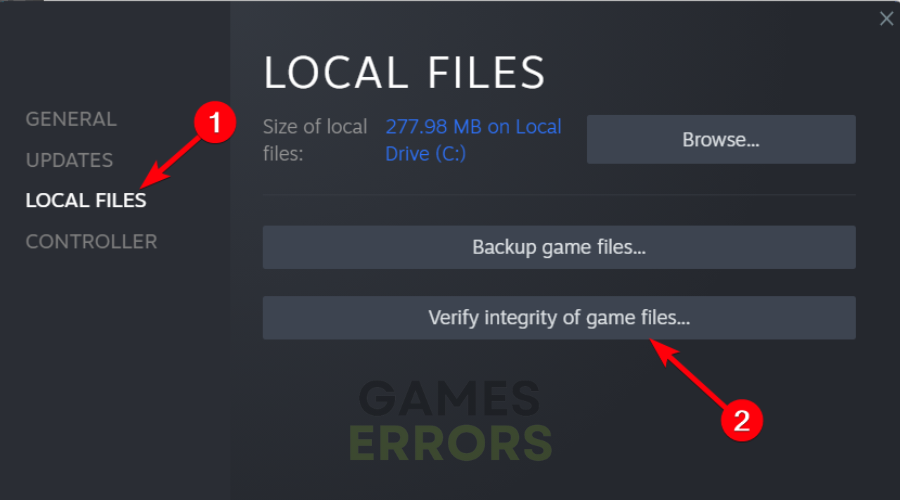
- Go to the Local Files tab.
- Click on Verify integrity of game files.
2. Update the graphics driver
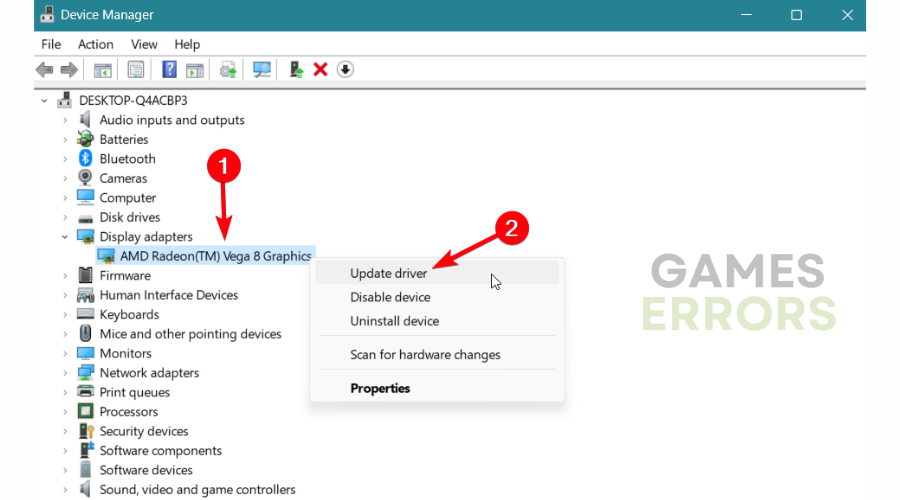
- Open the Start Menu, type Device Manager, and press Enter.
- Expand Display adapters.
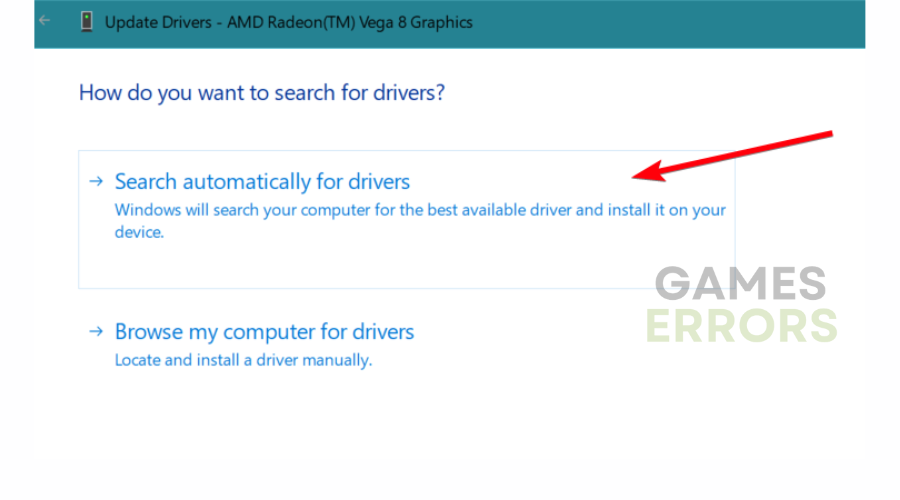
- Right-click on your graphics driver, and choose Update driver.
- Click on Search automatically for drivers and update the driver.
3. Clear Steam cache
- Go to Steam settings, as shown in the screenshot.
- Select the Downloads tab and click on Clear download cache.

- Now, try to run Squad and see if it works.

4. Disable problematic background services
- Right-click on the Taskbar and open Task Manager.
- Go to the Processes tab.
- Select the process you want to disable and then click on End Task.
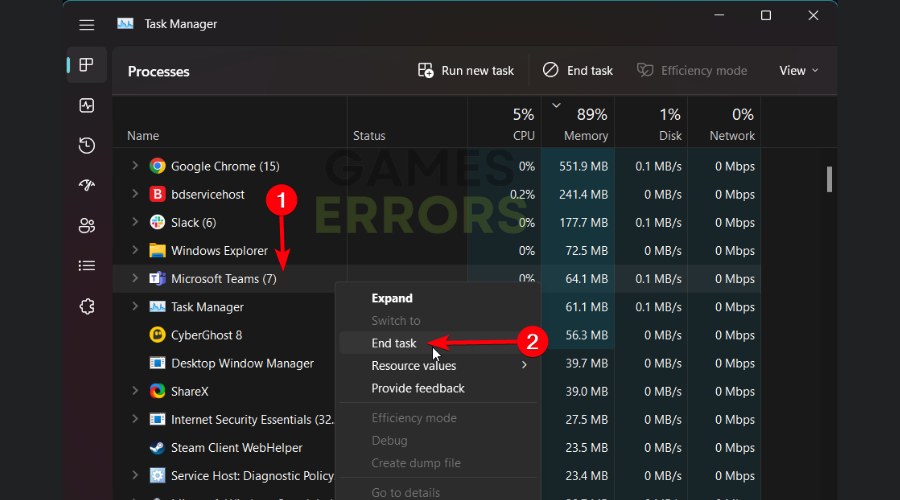
All unnecessary and problematic processes will be ended in this way and you can avoid crashing determined by conflicting programs running in the background.
5. Install DirectX runtime
- Go to the DirectX Runtime download page.
- Download the installer.
- Install it on your PC.
- Restart your computer.
6. Install the missing Visual C++ redistributables
- Visit the Microsoft Visual C++ Redistributable download page.
- Click on the download link for X64.
- Install it.
- Restart your PC.
You might encounter FPS issues like drops and low FPS even with a high-end PC. This issue was reported by a lot of players.
We hope that our guide helped you fix Squad crashing issues and that now you are playing the game. If you have any questions or if you encounter difficulties in the solutions to your game, please comment below and we will help you!



Improve this guide

User forum
8 messages