
Rise of the Tomb Raider Not Launching: How to Fix it Quickly
A required fix to solve Rise of the Tomb Raider launching error is updating the GPU driver ✅


 3 min. read
  Updated on

Rise of the Tomb Raider was reported by a lot of players after the game kicked off. Although several users complained about launching issues
The most common game issues that players encountered are related to ‘Rise of the Tomb Raider cannot be started while Steam is not running’ or ‘Rise of the Tomb Raider Steam is not launching at all’.
Most frequently, users experience Rise of the Tomb Raider not launching on PC. But Xbox One X, Mac, and Epic Games launcher are not excluded.
“I open the game and nothing happens at all. My status in steam is for a second that I am in the game and then nothing…”
How to fix Rise of the Tomb Raider not launching?
Table of contents:
- Update the graphics drivers
- Verify the game files on Steam
- Disable the antivirus protection
- Run the game in compatibility mode
- Reinstall the game
1. Update the graphics drivers
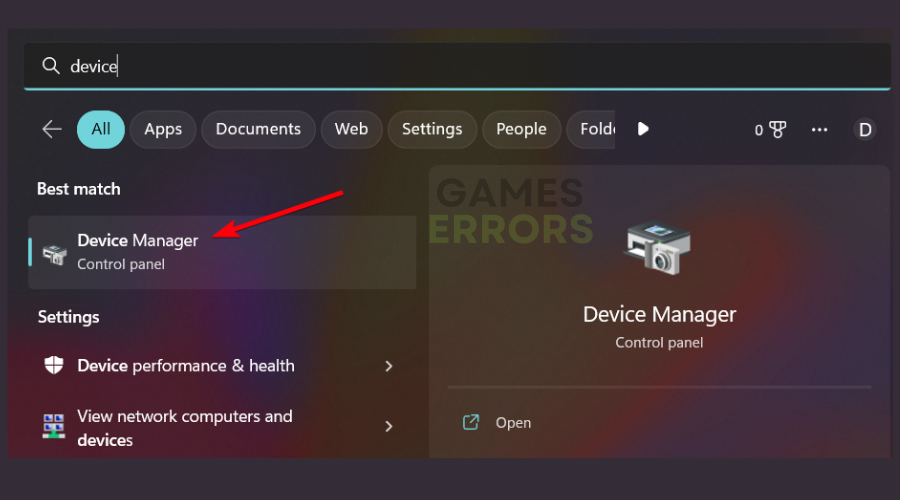
- Enter Device Manager in the Windows search box.
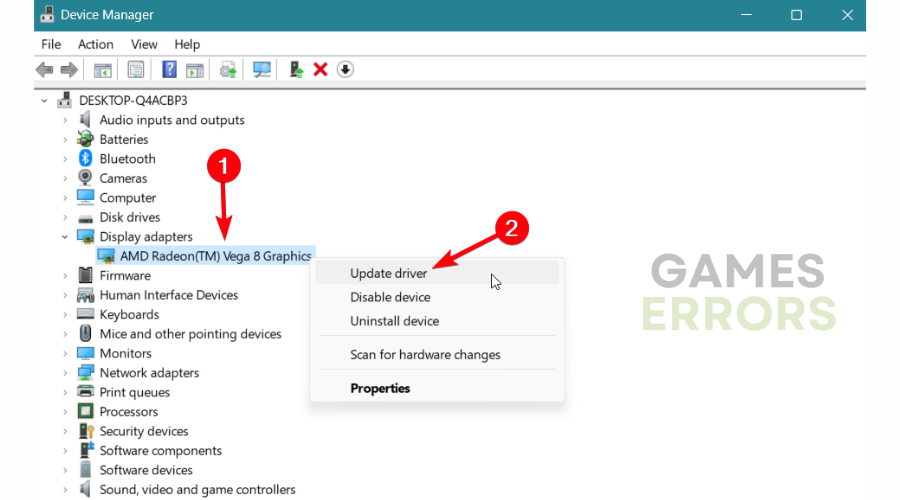
- Expand the Display adapters and right-click on the driver.
- Select Update driver.
- Choose the Search automatically for the driver option.
- After installation, restart your PC to finish.
2. Verify the game files on Steam
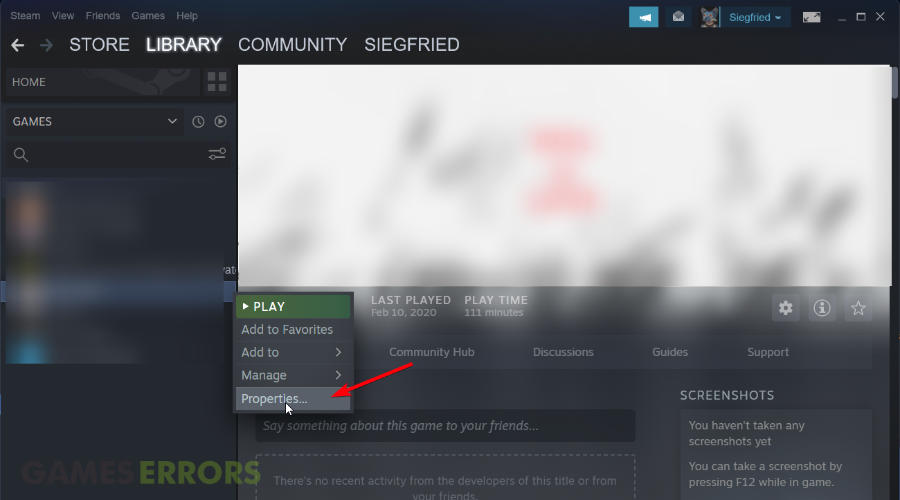
- Launch the Steam client and access Library.
- Right-click on your game to select Properties.
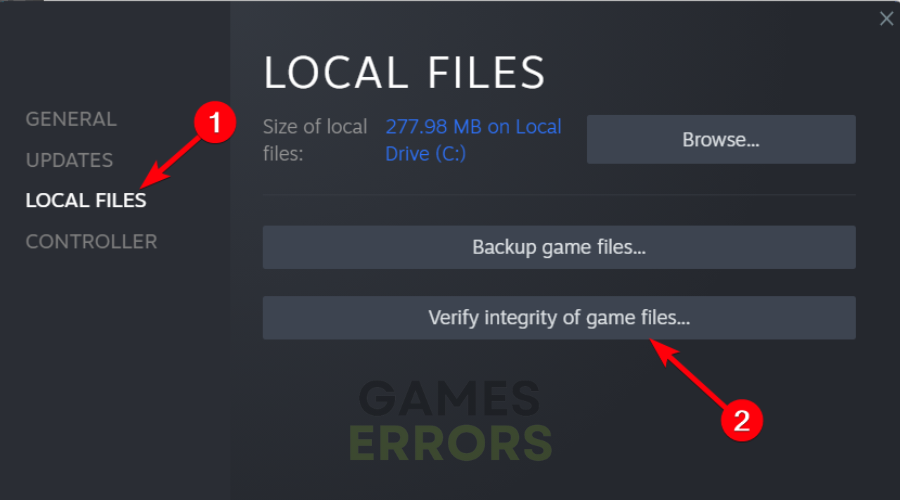
- Go to the Local Files tab and select Verify integrity of game files.
- Repair the corrupted files of the game.
- Launch the game again.
3. Disable the antivirus protection
- Type Windows Security in the taskbar search bar.
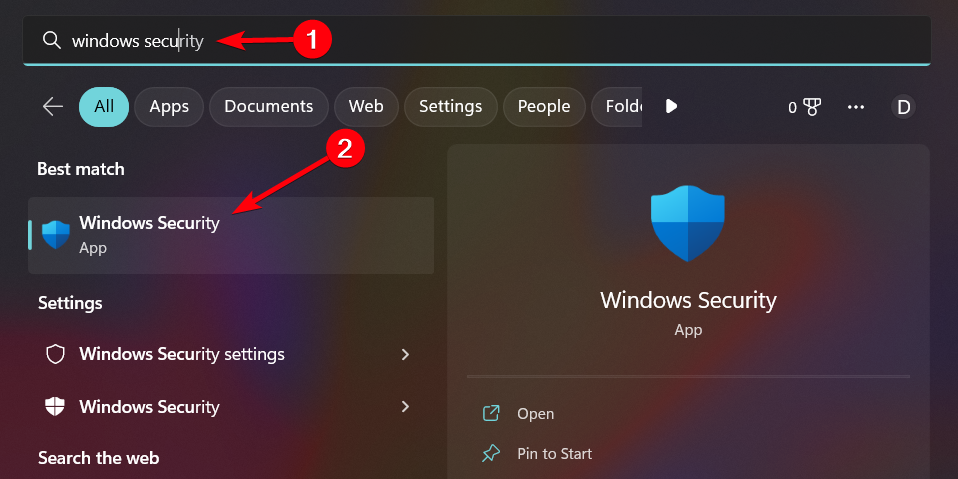
- Click on Virus & threat protection.
- Under Virus & threat protection settings, select Manage settings.
- Now, check the Turn off the Real-time protection to block the antivirus.
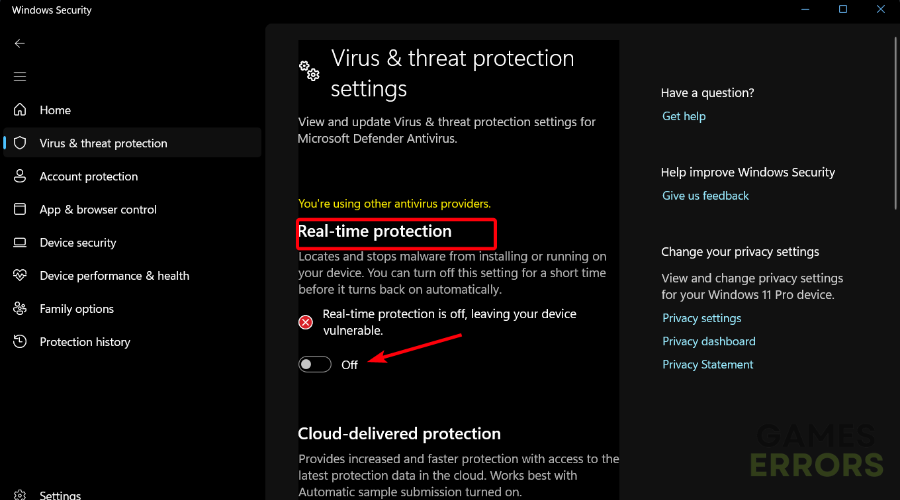
- Try the game now.
4. Run the game in Compatibility mode
- Navigate to your game folder location on your PC.
- Right-click on the game icon and click on Properties.
- Switch to the Compatibility tab and tick the Run this program as an administrator box.
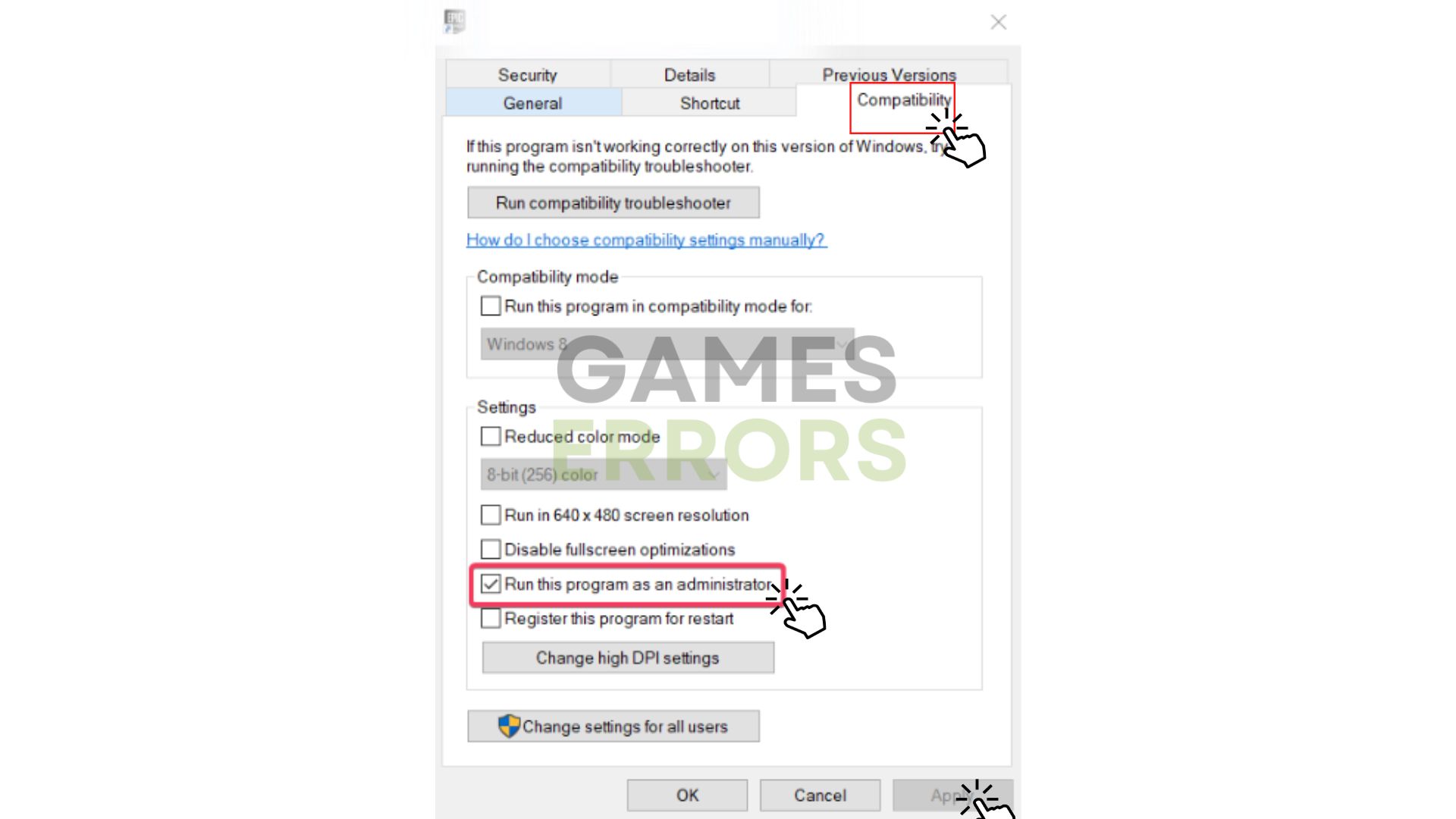
- Click on Apply and OK to close the window.
5. Reinstall the game
If none of the methods above worked for you and Rise of the Tomb Raider is not launching on Steam, it may be due to missing files or even corrupted game files that prevent the game from starting.
- To fix this, go to Steam and select Library → Hover the mouse on Manage → Click on the Uninstall button → Reinstall the game on Steam and see if it works.
Rise of the Tomb Raider not launching on Xbox One X
As mentioned before, you can have launching bugs on this game and the workaround sound like this:
- Before launching the game, modify the graphics settings to a high frame rate instead of enhanced options.
Rise of the Tomb Raider not launching on Mac
In case you’re running into launching errors on your Mac device, you can simply turn off the low Power mode from the battery settings.
Some players have found this solution really helpful on a Reddit thread with the same issue.
We hope that our guide helped you fix your Rise of the Tomb Raider not launching issue and that now you are playing and enjoying the game smoothly.



Improve this guide

User forum
9 messages