
Civilization 6 Graphics and Performance Issues [Quick Fixes]
Resolve any performance issues on Civilization VI with our exhaustive guide⚡


 9 min. read
  Updated on
Sid Meier’s Civilization VI is a complex and detailed game that can be challenging to run on certain hardware or software configurations. However, it’s not considered a problematic game.
Like any other game, it can have some bugs and glitches, problems that players may experience with the game’s graphics or visual elements, such as low frame rate, stuttering, or graphics not displaying correctly.
Thus, the issues may be due to graphics settings that are not properly set in the game when you encounter the Civ 6 failed to determine graphics device capabilities error message.
Players of Civilization 6 occurred graphics and performance issues and, apparently, the most encountered errors that are making it unplayable are:
➡️ Civilization 6 Crashing:
- Civ 6 crashes when loading the game
- Crashes on startup
- Crashing on next turn
- Keeps crashing on Xbox, Xbox Series X, PC (Windows 11, 10), Nintendo Switch, Mac, Ipad
- Keeps crashing in multiplayer
- Not launching
➡️ Civilization 6 no compatible graphics device found
➡️ Civilization 6 not launching, starting (Windows 11, 10, mac)
➡️ Civ 6 graphics glitch (mac), graphics flickering, screen tearing, menu glitching
Civilization 6 System Requirements
💻For Windows PC
➖ Minimum:
OS: Windows 7 64bit / 8.1 64bit / 10 64bit
PROCESSOR: Intel Core i3 2.5 GHz or AMD Phenom II 2.6 GHz or greater
MEMORY: 4 GB RAM
HARD DRIVE: 12 GB or more
DVD-ROM: Required for disc-based installation
VIDEO CARD: 1 GB DirectX 11 Video Card (AMD 5570 or Nvidia 450)
✔️ Recommended:
OS: Windows 7 64bit / 8.1 64bit / 10 64bit
PROCESSOR: Fourth generation Intel Core i5 2.5 GHz or AMD FX8350 4.0 GHz or greater
MEMORY: 8 GB RAM
HARD DRIVE: 12 GB or more
DVD-ROM: Required for disc-based installation
VIDEO CARD: 2 GB DirectX 11 Video Card (AMD 7970 or Nvidia 770 or greater)
💻For Mac
MINIMUM:
Requires a 64-bit processor and operating system
- OS: 10.14.6 (Mojave)
- Processor: Intel Core i5 2.7Ghz
- Memory: 6 GB RAM
- Graphics: 1 GB GPU Minimum – GeForce 775M | Radeon HD 6970 | Intel Iris Pro
- Storage: 15 GB available space
However, please note that these are the minimum Civ 6 system requirements and the game may not run optimally with these specifications. For best performance and visual quality, the game developer recommends the following system specifications or better:
- OS: MacOS 10.15 (Catalina)
- Processor: 3.0 GHz Intel Core i5 (4 cores)
- Memory: 16 GB RAM
- Hard Disk Space: 22 GB
- VIDEO CARD: 4 GB NVIDIA 970, 4GB AMD R9 390, 2GB Intel UHD 630 or better
It’s also important to note that these requirements are for the base game, and the performance of the game can be affected by additional content or expansion packs.
As the matter of fact, you can face a Civ 6 graphics glitch on Mac that may appear on Mac devices with a flickering screen and graphics.
- Initial installation requires a one-time Internet connection for Steam authentication; software installations required (included with the game) include Steam Client, Microsoft Visual C++ 2012 and 2015 Runtime Libraries, and Microsoft DirectX.
- If you have Windows 8.1 x64, you need to check and see if you have the latest Windows XB updates. For a guide on how to do that, check the steps below. After you check the Windows update, you can go ahead and fix your errors. Below you will find a list of all the game bugs, and for each issue, you will find a corresponding solution or workaround. Check the list below for more details!
Below is a list of the most common issues that players are currently complaining about. For each issue, you will find a corresponding solution or workaround to fix it. Let’s start now and fix your errors!
Civ 6 Crashing Troubleshoot
Why does my Civ game keep crashing?
1. Update your Graphic Drivers
Outdated or incompatible drivers can cause a variety of issues, including crashes, low performance, and graphical glitches.
By updating your drivers, you can ensure that your computer is using the most recent version of the software that controls your graphics card.
You can do this by visiting the website of your graphics card manufacturer (NVIDIA, AMD, or Intel) to see if there are any newer drivers available for your graphics card. Also, make sure that you are running on the latest version of DirectX.
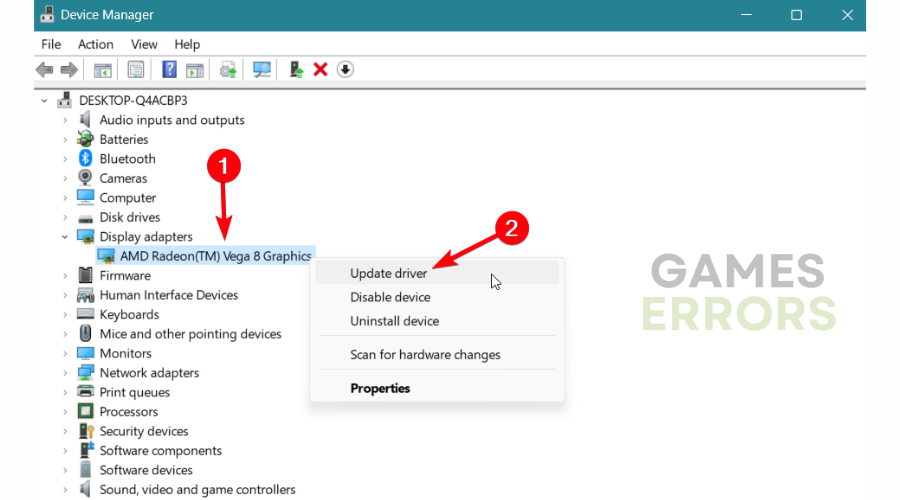
From your Windows PC, you can also update your graphic drivers via Device Manager by:
- Press the Windows key + X and select Device Manager from the menu.
- Locate the category for Display adapters and expand it.

- Right-click on your graphics card and select Update driver.
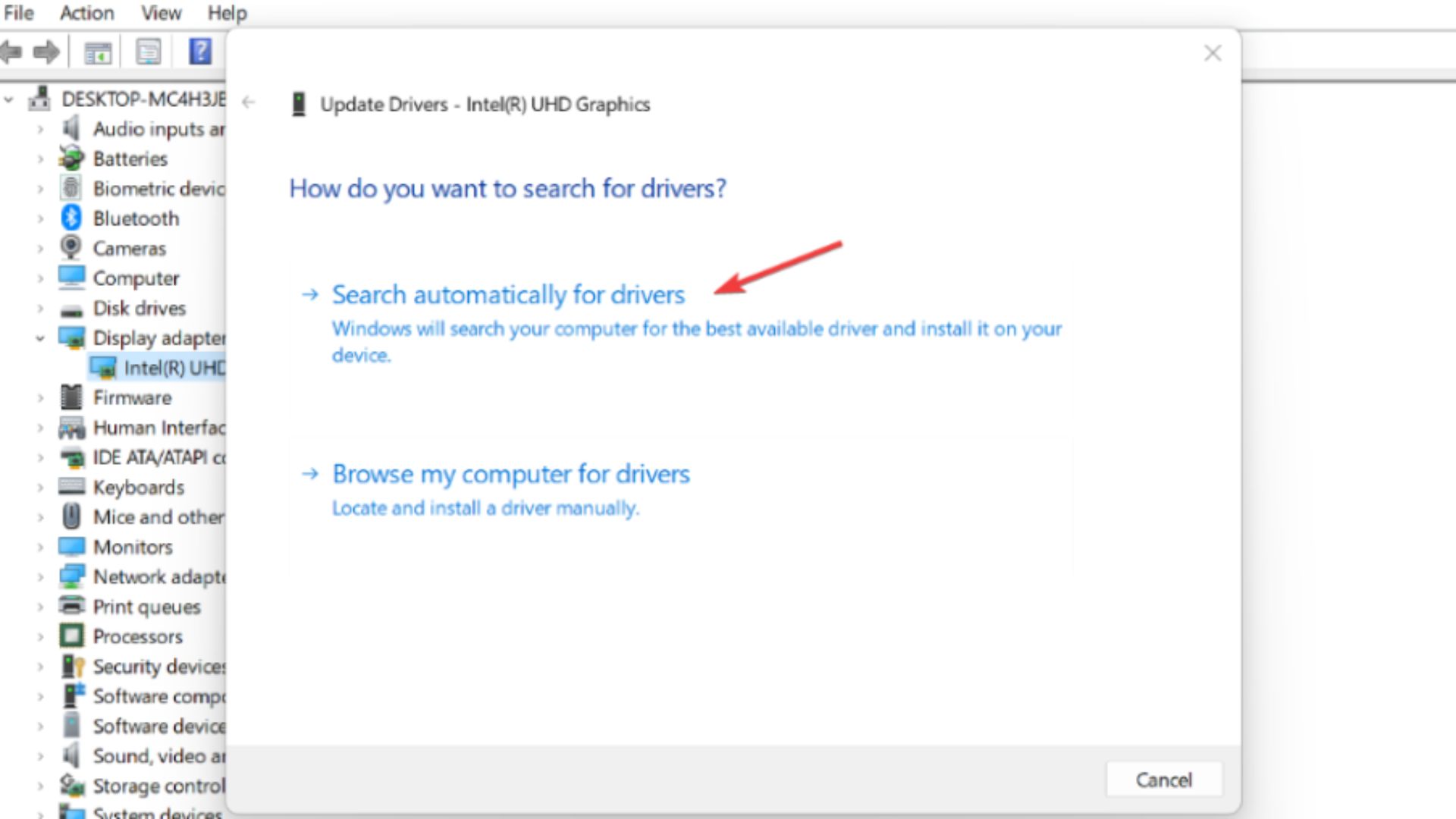
- Select Search automatically for updated driver software.

- Windows will search for available updates and prompt you to install them. Follow the on-screen instructions to complete the update process.
- After the update is complete, restart your computer for the changes to take effect.
No compatible graphics device found
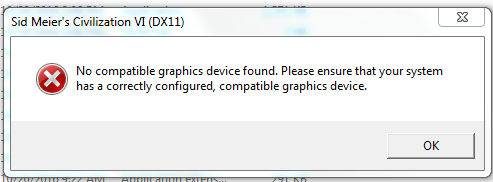
This issue is generated by your GPU because it’s outdated. By default, Civilization 6 uses DirectX 12 and your graphic card can’t support this version so it tries to run the game on Dx 11 and you get this error about “No compatible graphics device found”.
To make sure that everything goes smoothly and avoid any kind of GPU driver errors, be sure to use a complete driver update assistant that will solve your problems with just a couple of clicks. We strongly recommend PC HelpSoft which will allow you to fix various games and PC problems.
Workarounds:
There are 2 ways to play the game with your GPU and using DirectX11 but both of them result in horrible performance issues and low fps. Don’t worry about that because we will fix the framerate issue later. First, we need to make sure that we can run the game on DirectX11, and do to that you need to apply the steps below to your game.
-
First Method:
- Press Windows + R again and run
dxcpl(If this can’t be found, install the Windows SDK which can be found for Windows 7 and for Windows 8. Windows 10 should not require anything and you should find the application.) - Click on Edit List and add “SteamApps\common\Sid Meier’s Civilization VI\Base\Binaries\Win64Steam\CivilizationVI.exe” to the list.
- Next, check the checkbox at the bottom that says Force WARP and click apply to close this window.
- Finally, open “Documents\My Games\Sid Meier’s Civilization VI\AppOptions.txt” and change AllowSWRenderer to 1 and FullScreen to 2.
This should result in the game at least running, but as we said, performance will be horrible and you need a pretty strong CPU to make this even playable, which is unlikely if you already had a bad GPU in the first place.
Plus, read more below to fix the framerates after you applied this workaround.
-
Second Method:
→ Navigate to “Sid Meier’s Civilization VI\Base\Binaries\Win64Steam”. There will be two executables, one titled “Civilization VI”, and one titled “CivilizationVI_DX12”.
→ Use “Civilization VI” to launch the game, which will utilize Directx 11, and your problems should be solved. By default, Civilization VI appears to use the DirectX 12 executable.
After applying the workarounds from above, you should have fixed your Civilization VI no compatible graphics device error, and your game should run fine but with some framerate issues.
Sid Meier’s Civilization VI Performance Issues

You might be unable to play the game because of performance issues like Low FPS, FPS Drops, or Stuttering. These issues are because of the poor optimization of the game or it might be your PC. To fix them you need to optimize your Windows by applying the workarounds below.
Workarounds:
- For AMD users, disable Raptr from the Task Manager. Disable any other intensive applications that may be running in the background. Also, try setting ‘Tessellation mode’ to 8x/16x and ‘Texture Filtering Quality’ to Performance from your latest Crimson edition Radeon software to fix frame rate drops.
- For Nvidia users, go into your Control Panel 3D Settings. Make sure that the ‘Power Management Mode’ option should be set to ‘Prefer Maximum Performance’.
- If you are experiencing screen flickering or frame-pacing issues, disable Crossfire/SLI and run the game using a single GPU. Also, disable Steam Overlay by right-clicking the game in Steam Library and then go to Game Properties.
Let’s hope that by now you managed to fix all your Sid Meier’s Civilization VI errors and issues and that you are enjoying the game.
If you still encounter some issues and don’t know the answers, please reach out in the comments below for any issues related to Civilization VI gameplay.



Improve this guide

User forum
75 messages