
Lords of the Fallen Is Crashing: Check These Fixes
If your Lords of the Fallen game is crashing, stay on this guide and follow our recommended steps! 👍


 5 min. read
  Updated on

We know that many of you are currently experiencing crashing troubles while trying to play Lords of the Fallen, so we released this tutorial to help you play the game.
The game has been compared to other games like Darksiders and Dark Souls, but it’s way more awesome. The main character of the game is Harkyn, a convicted criminal that is the world’s last hope for salvation.
The Demonic Rhogar army is re-emerging and Harkyn must fight them in order to save the world. This is the premise of the game, which will bring you to a world where you will need to defeat the gods that attack the human realm.
However, like any other game, crashes are common on Lords of the Fallen. Now let’s discover more about this subject and the workarounds you should go for.
What can I do if Lords of the Fallen keeps crashing?
Table of contents:
- Verify the integrity of game files
- Update your GPU drivers
- Change game settings
- Close unnecessary programs
- Temporarily disable your antivirus software
Before applying the serious solutions, we strongly recommend first verifying if your system meets the minimum requirements for running Lords of the Fallen. Below you can find them:
Minimum requirements:
- CPU: Intel Core 2 Quad Q8400 @ 2.66Ghz or AMD Phenom II X4 940 @ 3.0Ghz
- RAM: 6 GB RAM
- GPU: GeForce GTX 460 or better
- DX: 11
- OS: Windows Vista (SP2), Windows 7 (SP1), or Windows 8 (only 64-bit OSs)
- STO: 25 GB available space
- Sound: DirectX 9.0c Compatible Sound Card with Latest Drivers
Recommended requirements:
- CPU: Intel Core i7-3770 @3.5 GHz or AMD FX-8350 X8 @ 4 GHz
- RAM: 8 GB RAM
- GPU: GeForce GTX 560 Ti or better
- DX: 11
- OS: Windows Vista (SP2), Windows 7 (SP1), or Windows 8 (only 64-bit OSs )
- STO: 25 GB available space
- Sound: DirectX 9.0c Compatible Sound Card with Latest Drivers
Plus, we strongly recommend making sure that you run the game as an administrator and have DirectX/Visual C++ installed from the game folder.
1. Verify the integrity of game files
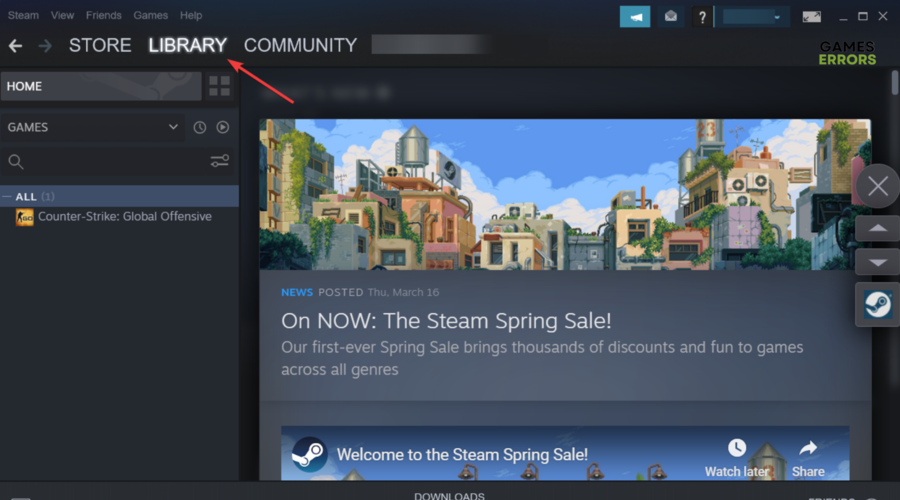
- Open your Steam client.
- Go to Library.

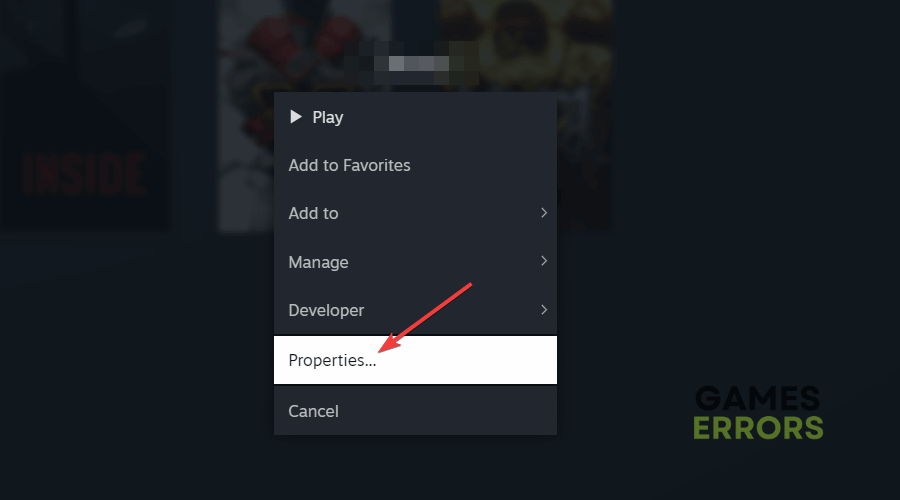
- From the left window pane, right-click on Lords of the Fallen, then choose Properties.
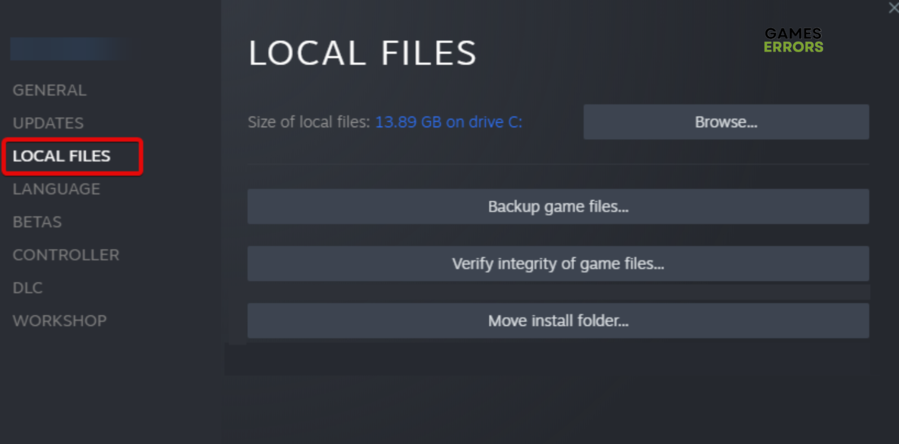
- Now, choose Local Files.

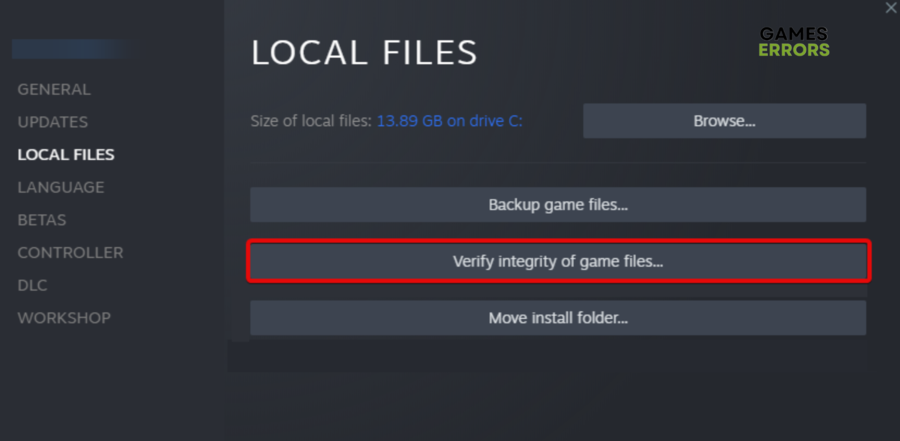
- From the right window pane, click on Verify the integrity of game files..

- Wait until the process is completed.
In case Lords of the Fallen is still crashing on your Steam client, make sure you keep on reading.
2. Update your GPU drivers
Time needed: 4 minutes
Updating your GPU drivers is the best option you can try if your game keeps crashing.
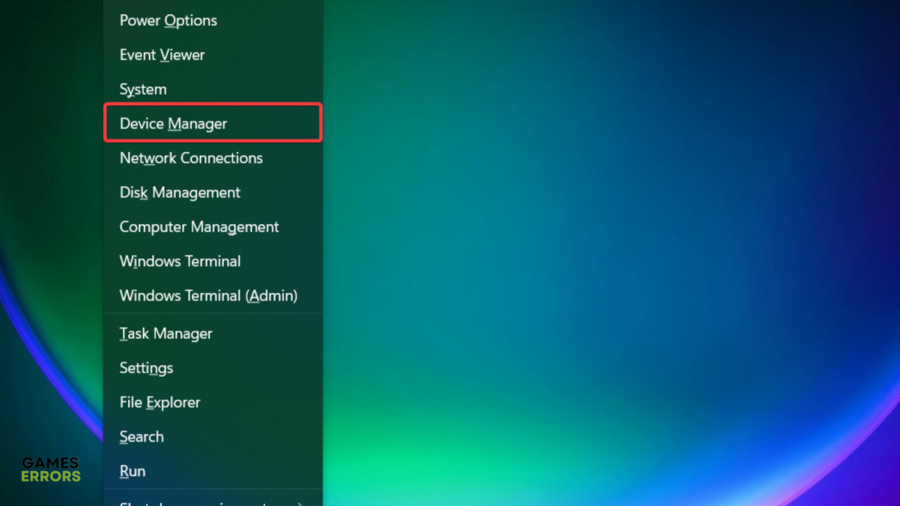
- Use the following keyboard shortcut: Windows + X
- Choose Device Manager.

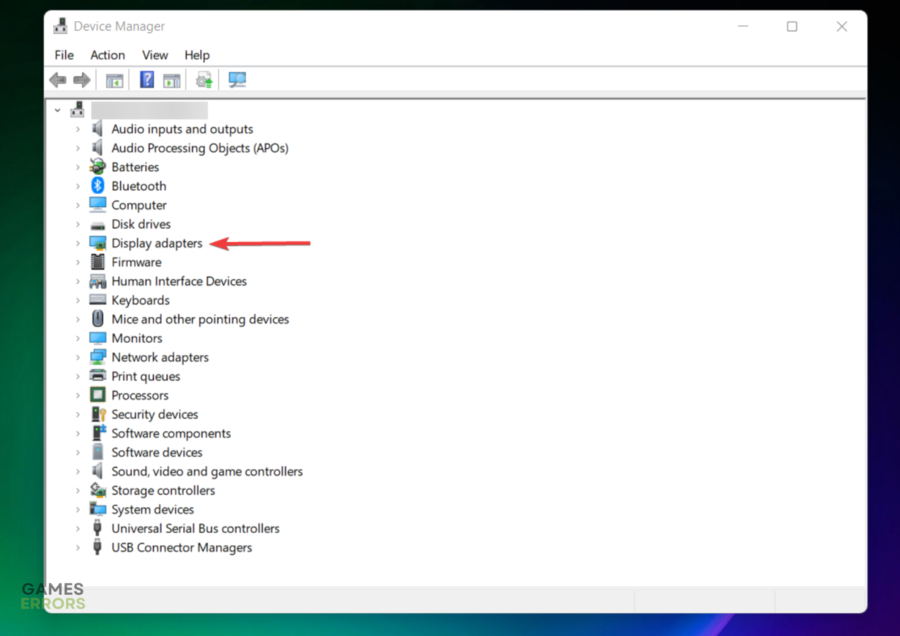
- Look for the Display adapters section, then double-click on it.

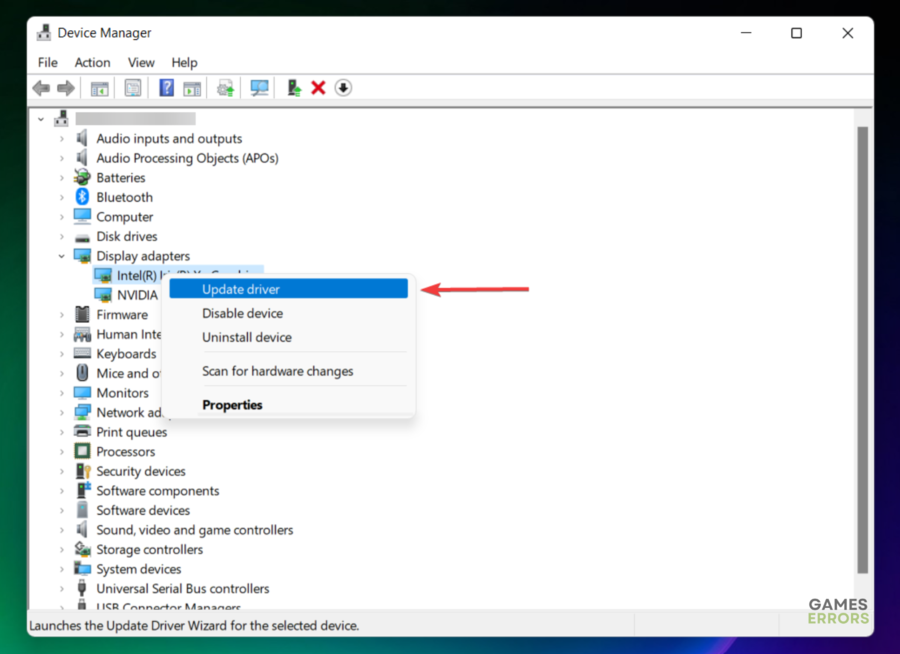
- Find the needed driver, right-click on it, then choose to Update driver.

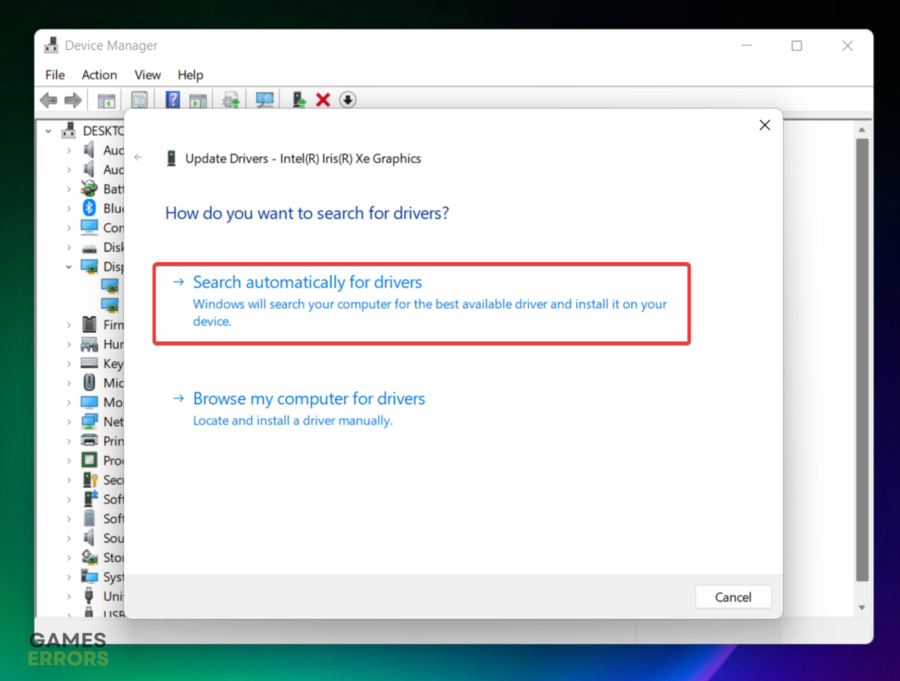
- Choose to Search automatically for drivers.

- Wait until your system scans and updates your components.
The above steps can be applied manually. However, if you want a time-saving solution, we strongly recommend going for PC HelpSoft.
PC HelpSoft is a software program designed to scan a computer’s hardware components and identify any outdated or missing device drivers.
It can then automatically download and install the necessary updates for these drivers, improving the performance and stability of the system.
Additionally, PC HelpSoft can create backups of existing drivers, restore them if necessary, and schedule periodic scans to ensure that drivers are always up to date.
3. Change game settings
Make sure you set these game changes:
- Antil Aliasing mode: Override application setting
- Anti-aliasing samples: x4
- Filter: Standard
- Anti-Aliasing method: Multisampling
- Morphological filtering: On
- Anisotropic filtering mode: override application settings
- Anisotropic filtering level: 16x
- Texture filtering quality: Performance
- Surface format optimization: On
- OpenGL Buffering: Off
- Tessellation mode: Override application settings
- Maximum tessellation level: 64x
- Frame pacing: On
- AMD Crossfire mode: Disabled
Wait for vertical refresh: Off unless application specifies (This is ON in the game settings as the game seems to have issues with vsync forced from outside)
4. Close unnecessary programs
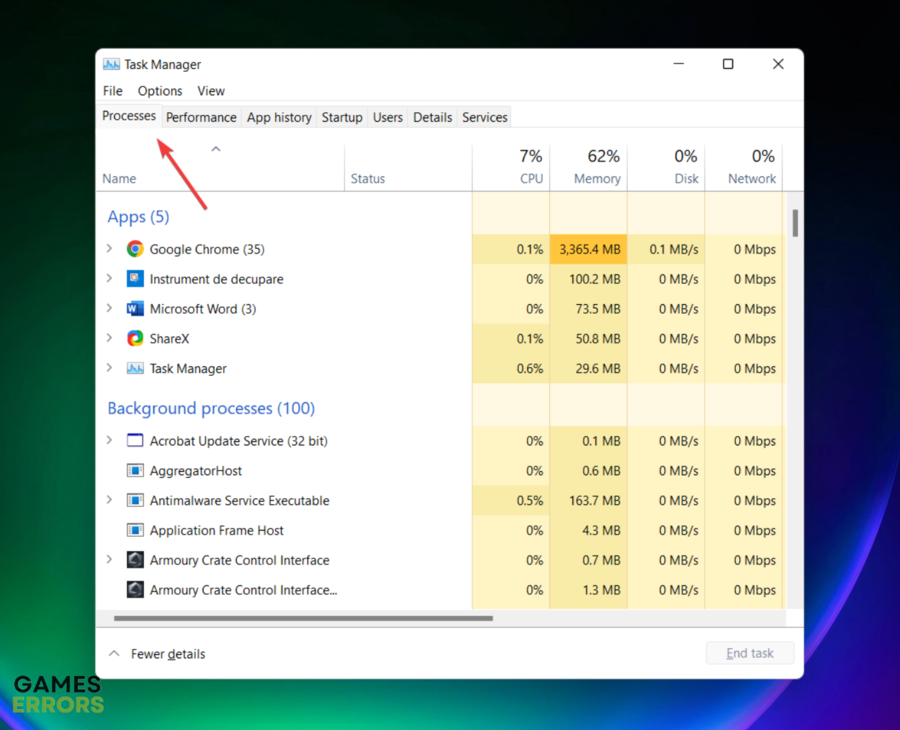
- Hit the Windows key, type Task Manager, then open the first result.
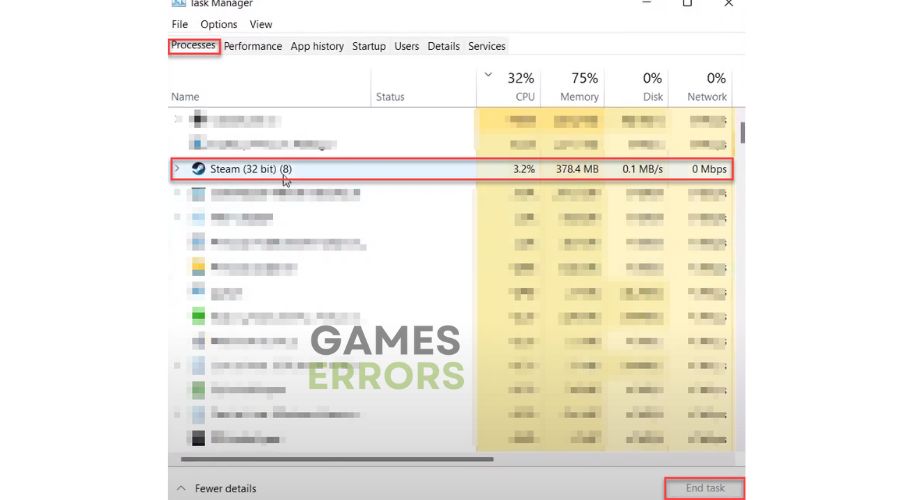
- Make sure you’re in the Processes tab.

- Click on the app you don’t necessarily need, then choose to End task (As shown in the example below).
- Repeat the same process for each app you don’t necessarily need.
5. Temporarily disable your antivirus software
When a game crashes, it can be frustrating and difficult to determine the root cause of the problem. However, one standard solution that is often suggested is to temporarily disable your antivirus software while playing the game.
When a game is running, it also uses system resources and may access files and processes that are flagged by the antivirus software as potentially harmful.
If the antivirus software detects a threat or suspicious activity, it may interrupt the game’s normal operation or even terminate it abruptly. This can result in annoying crashing issues.
Related articles:
We hope that our tutorial helped you fix your Lords of the Fallen crashing errors. Have fun playing the game, and if you have any questions or problems, contact us with a comment below or by using our support page.



Improve this guide

User forum
22 messages