
The Division Crashing on PC: Here's Why & How to Fix It
If The Division keeps crashing on your PC, be sure you have the GPU drivers up to date


 4 min. read
  Updated on
Tom Clancy’s The Division is available on Steam and by now the game has a lot of mixed reviews. Players complained that the game servers went down at the launch of the game and also about other critical errors involving The Division PC crashing.
A lot of players are encountering game-breaking issues and they are unable to play the game. The most common problems that users reported are The Division crashing on startup or crashing on fullscreen.
Why does the Division keep crashing?
It can be a handful of reasons why the Division is crashing on your PC but the most likely ones may be damaged game files, outdated or missing driver versions, or compatibility issues with the game.
In order to solve such unpleasant game crashes, we’ve come up with simple and effective solutions that won’t take you much time to fix them and enjoy the gameplay.
Before proceeding to our quick solutions, make sure you verify that you meet the minimum system requirements for this game.
How to fix the Division crashing?
- Check the integrity of game files
- Update the GPU drivers
- Launch the game with DirectX 12
- Run the game in compatibility mode
1. Check the integrity of game files
Among the most essential steps to resolve crashes on The Division is to have the game files running. To see whether you have corrupted files or not, perform the next steps:
- Go to the Library on the Steam client.
- Right-click on The Division icon and select Properties.
- Go to Local Files and click on Verify integrity of game files.
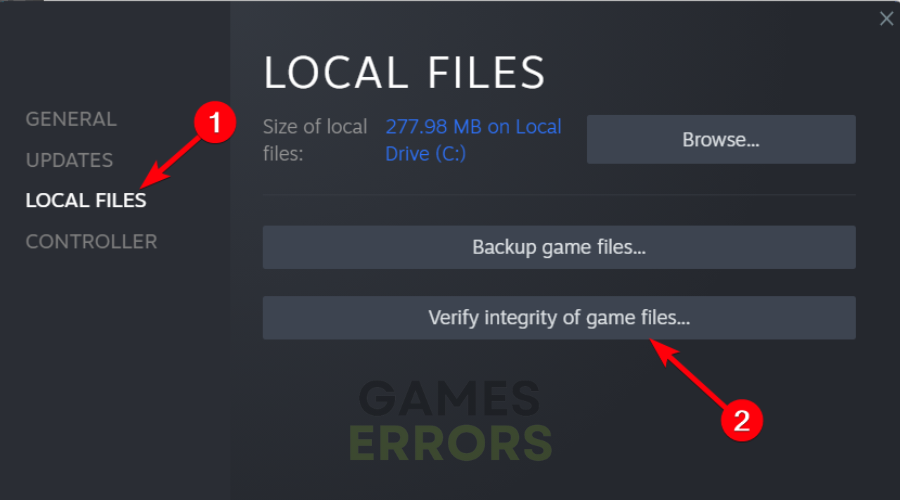
- Repair any corrupted files.
2. Update the GPU drivers
- Right-click on the Windows taskbar button and select Device Manager.
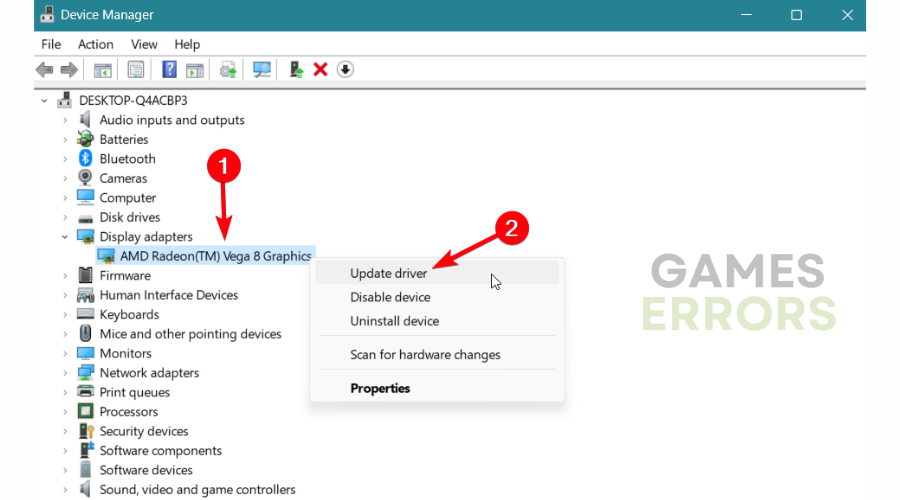
- Expand Display adapters and right-click on the display driver.
- Go for Update driver and select Search automatically for the driver.
- Restart your PC.
Get PC HelpSoft"}” data-sheets-userformat=”{"2":1327617,"3":{"1":0},"12":0,"17":1,"21":0,"23":2}”> ⇒ Get PC HelpSoft
3. Launch the game with DirectX 12
- Open the Steam client and go to Library
- Select the game properties.
- On the General tab, locate the Set launch options.
- Add the next command: –dx12 (DirectX12)
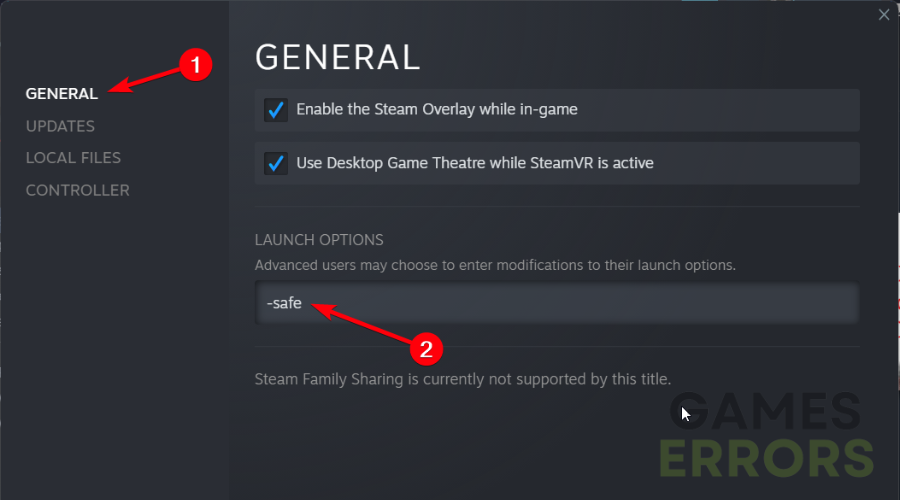
- Save it and close the settings.
4. Run the game in compatibility mode
- Locate the game’s folder location and right-click on The Division.exe
- Go to the Compatibility tab.
- Under the compatibility mode, check the option to activate it.
- Now, select another version of Windows (7 or 8) as more compatible with the game.
- Click Apply and close the window.
💥Other examples of Tom Clancy’s The Division Crashes
This issue is very common, for some players the game crashes constantly while playing or during the intro of the game.
“I can get into the game and play for about 5 minutes or so and then my game crashes to desktop. I can’t seem to get it to stop doing that. If anyone has a known way around this, please help.”
“So the game crashed about 5-10 secs into playing. I can sit in the menu just fine but it seems any actual gameplay just crashes me
Running an i7-4790k and SLI 980 Ti(s) With 3 Monitors, One 4k as the main display and 2 1080p”“The game either crashes halfway through the opening scene or right afterwards. Any ideas?”
Therefore, make sure that you meet the required PC specifications and that you have the latest graphic card drivers up to date.
By now we hope that you managed to fix your issues and that you are enjoying the game. At the same time, you may have a look at our guide on Tom Clancy’s Ghost Recon Wildlands crashing.
If you have any other questions regarding other issues that we haven’t mentioned please comment below and we will help you fix your Tom Clancy’s The Division errors.



Improve this guide

User forum
32 messages