
Dark Souls 3 Crashing: How to Fix It Fast
Dark Souls 3 keeps crashing on startup or in the mid-game? We've got your PC's back🎯


 5 min. read
  Updated on
A lot of players complained about encountering Dark Souls 3 Crashing issues. However, such problems are hard to tolerate when it comes to Souls games. After all, they are the hardest games out there, and it is very frustrating to almost beat a boss or to finish a hard quest line just to start it all over again. But do not worry; we have a list of solutions and fixes for the Dark Souls 3 Crash problems.
You might encounter DS3 crashing on startup, when loading save, or randomly which is the most annoying thing which can happen, even more annoying than the twins fight.
Why is Dark Souls crashing?
Dark Souls is crashing because you have either corrupted game files, outdated drivers, way too high graphic settings, or background processes that are causing software conflicts. Although there might also be other problems that could potentially lead to DS3 crash issues.
You should also check that you meet the system requirements below to run the game properly. After that, if you encounter issues with the game, follow our solutions below.
How to fix Dark Soul 3 crashing?
1. Repair the game files
Corrupted, faulty, or missing game files will only cause trouble for your gameplay, and they might also lead to other functionality-related errors and problems. Using a repair tool is the quickest and easiest way to verify game files.
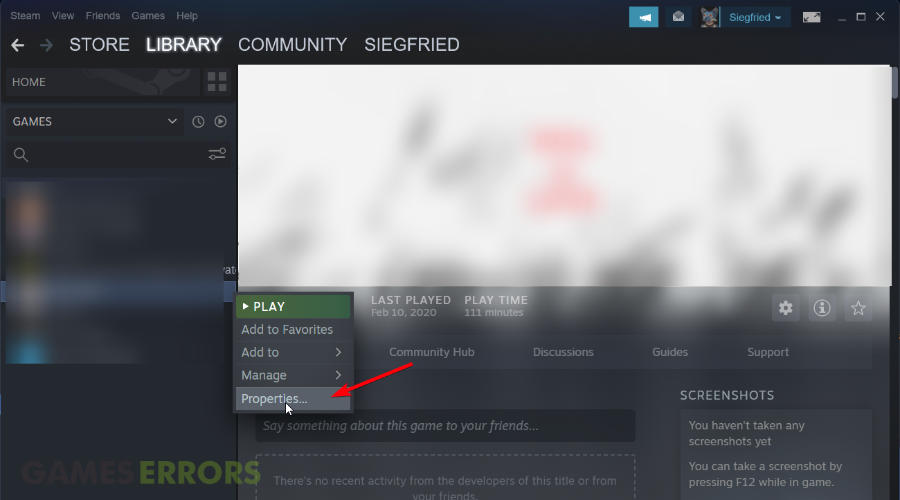
- Go to Library and right-click on the game in Steam.
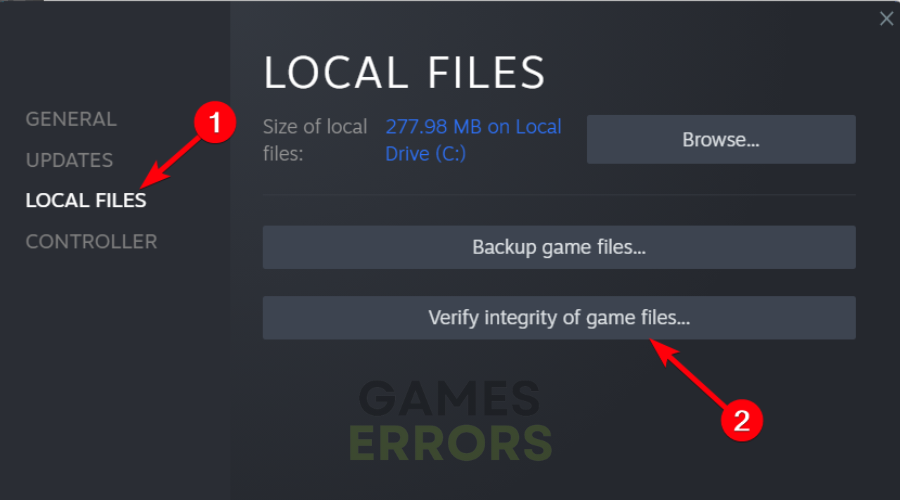
- Select Properties and go to Local files.

- Click on Verify the integrity of game files.
- Wait to find potentially corrupted files and repair them.
2. Remove background processes
By closing unnecessary background processes, your system will be able to allocate more resources to DS3, thus making it more stable. Also, by removing some processes, you will decrease the chances of having to deal with random game crashes created by different types of conflicts between services, files, and processes.
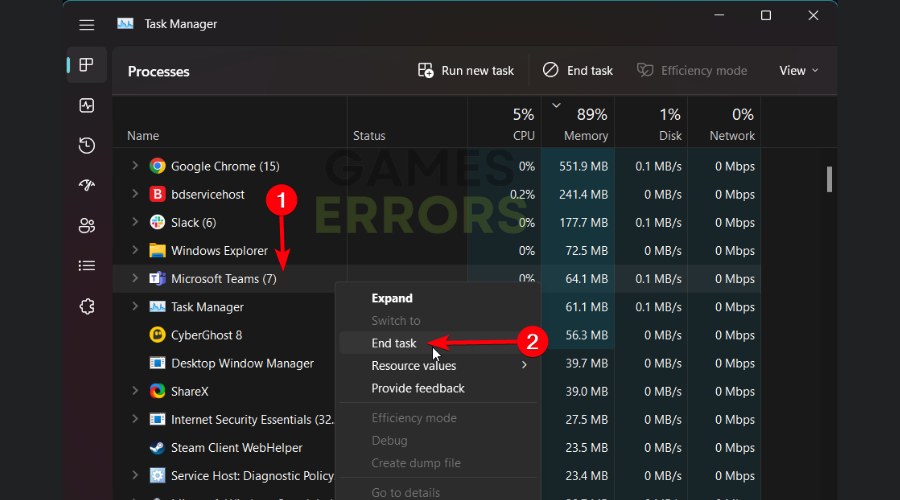
- Open Task Manager and go to the Processes tab.
- Right-click on interfering apps and press End process.
- Repeat the action for any risky programs in the list.
- Close the window and retry the game.
3. Update GPU drivers
Updated GPU drivers will make the game more stable, thus allowing you to play at full resolution and with the best graphics Settings that your PC can handle. After all, corrupted, outdated, and faulty GPU drivers can only lead to DS3 crashes randomly.
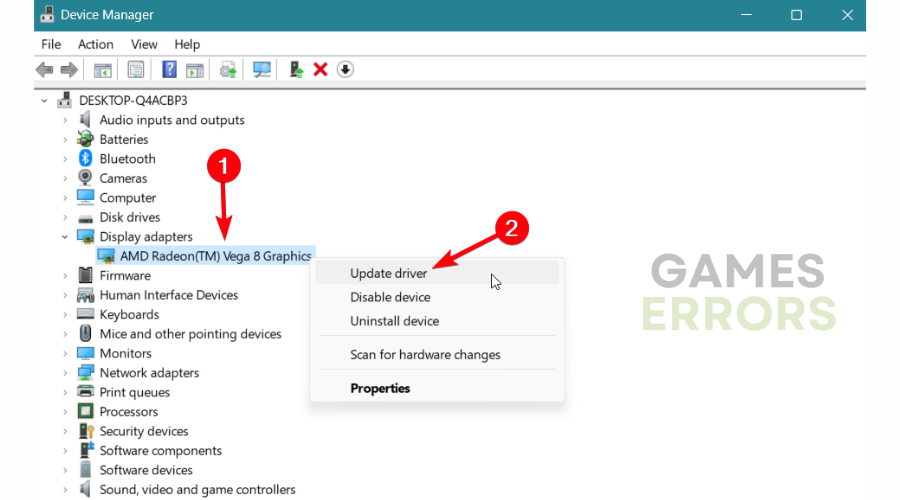
- Open Device Manager on your desktop.
- Expand Display adapters and select the driver.
- Select Update driver from the menu.
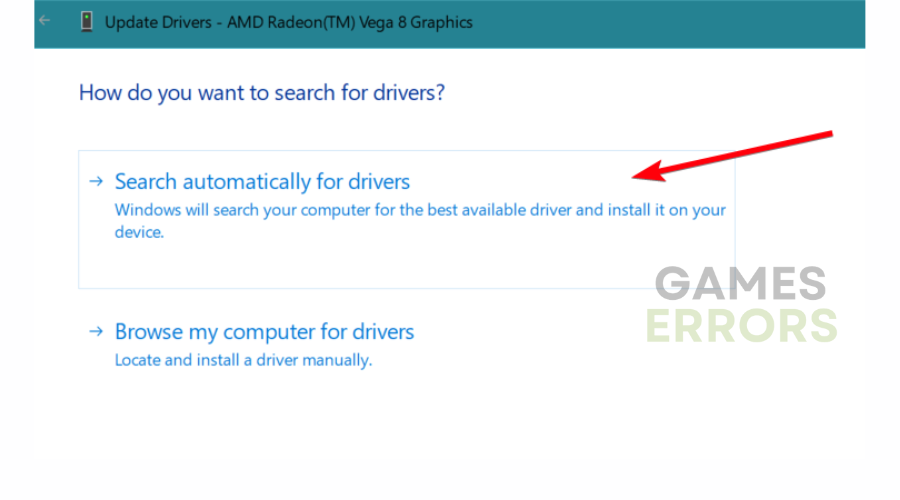
- Go for Search automatically for drivers.
We also suggest you use PC HelpSoft to update the graphics card driver. Windows Device Manager often fails to get the latest driver. But third-party tools like PC HelpSoft can easily update any drivers on your PC and solve game crashing problems.
⇒ Get PC HelpSoft
4. Change graphics settings
A useful way to get rid of different crashes while in-game is to modify your graphics settings from the menu and reduce system resources that may result in issues like crashing.
- Launch the game.
- Go to the Game Options and select Graphics settings.
- Change all the Graphic Settings to Low or Medium if they were on High.
- Also, change the resolution which may affect the game’s stability.
- Try to enable VSync as it will balance the refresh rate of your monitor with the fps.
Some workaround that may help you fix the crashes:
➡ Dark Souls 3 Bonfire Crash: this is one of the most encountered crash in the game. It happens when you try to defeat the giant boss from the tutorial. To fix it, set the Lighting from the Game Settings to Low.
➡ Dark Souls 3 Crashes at Higher Resolution: it seems that the game crashes on higher resolution, like 1440p – 4K. To fix this issue just go back to 1080p resolution. This resolution of 1440p requires a lot of system performance, it requires almost 50% more.
➡ Close third-party overlays: Sometimes Dark Souls 3 crashing randomly problem is triggered by the overlays provided by other apps, and the security system might consider them cheating applications. To fix it, disable third-party overlays from applications like Discord, Nvidia, YouTube, Twitch, Steam, and Xbox.
Related Articles:
- How to Fix Dark Souls 3 FPS Issues: FPS Drop & Low FPS
- Dark Souls Prepare to Die Crashing: Why & How to Fix It
- Elden Ring Keeps Crashing: How To Fix It
- How To Fix Games Crashing On Startup: Ultimate Gamer’s Guide
- How To Increase FPS In Games: 7 Easy Tips To Boost It
We hope that our guide helped you fix your Dark Souls 3 crashing and that now you are playing and enjoying the game. If you encounter any other issue or if you don’t know how to apply a solution or a workaround from above, please comment below and we will help you fix your game.



Improve this guide

User forum
29 messages