
GTA 5 Not Launching: Here's How To Fix It [2023 Quick Guide]
Many players met the GTA 5 not opening problem, so the first check should be your GPU driver ✅


 6 min. read
  Updated on
Many players are encountering GTA 5 not launching, which is preventing them from playing the game.
‘GTA 5 not opening’ usually occurs when players click the Play button in Steam or other launchers like Epic Games or Rockstar launchers. Also, the players have reported that GTA 5 won’t launch after mods that were installed on their PCs.
The launching issues can appear on different devices and platforms. Mostly, GTA 5 is not launching on Windows 11 and Windows 10 (including the launchers: Steam, Epic Games, and Rockstar), and also on Xbox One.
Why is GTA 5 not launching?
In general, GTA 5 won’t launch because of out-of-date graphics drivers, but there is not a singular answer to this inquiry, so you should take into consideration different aspects to fix the issue. Namely, GTA 5 would not open due to:
- outdated graphics driver
- corrupted game file
- even incompatible OS
- antivirus protection
💬 We appreciate how valuable your time is, which is why we created this article with the goal of saving you 10 minutes by giving you the necessary information. You’ll save time, learn valuable information, and find the exact solution to fix GTA 5 not launching by reading our article.
How to fix GTA 5 not launching on PC?
To fix GTA V not launching on PC, you can try to update the GPU drivers, verify the game files, run the game as administrator, turn off your antivirus software for a couple of minutes, or, in a dire situation, reinstall the game.
The best solutions to this problem are:
- Update GPU drivers
- Verify the game files
- Run the game as an administrator
- Turn off antivirus protection
- Disable your NVIDIA Drivers
- Reinstall Grand Theft Auto 5
1. Update GPU drivers
Time needed: 5 minutes
One of the best solutions to fix GTA 5 Not Launching is to update your GPU drivers because they directly affect the game’s performance.
-
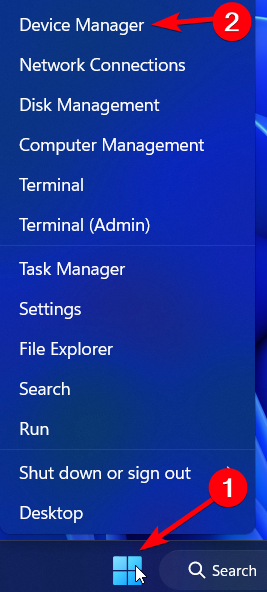
Click on Device Manager from the Windows taskbar button.

-
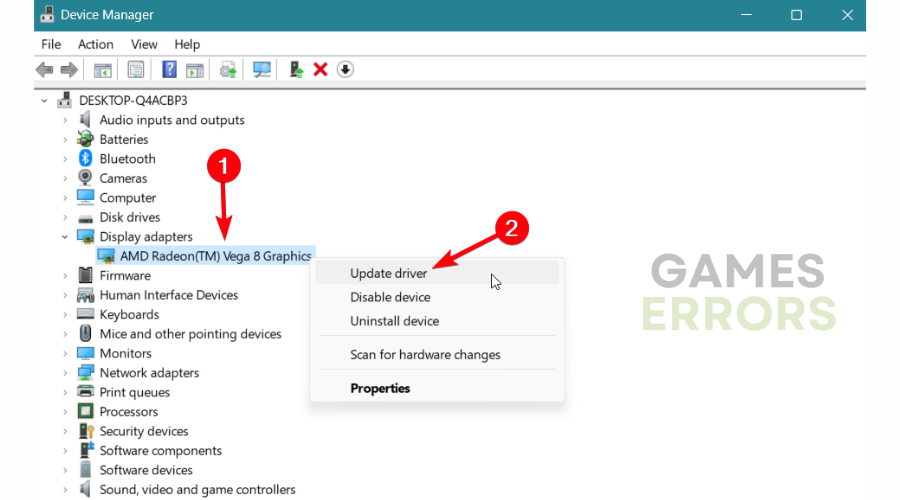
Go to Display adapters and right-click on your graphics driver.
-
Now, click on Update driver.

-
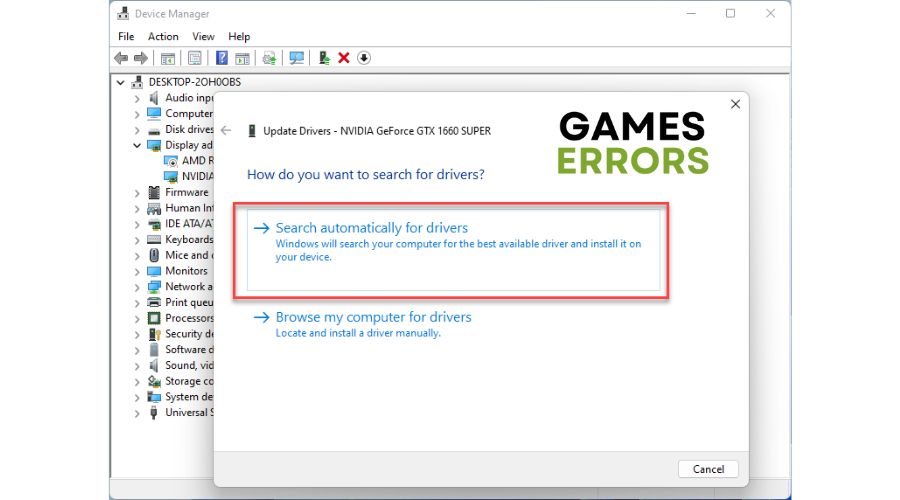
Choose Search automatically for drivers.
-
Restart your PC to complete the process.
As an alternative, you can also utilize a dedicated driver updating software that will scan your PC and update old drivers with their official manufacturer version. PC HelpSoft is the most suitable method to resolve all your driver issues 100% automatically.
⇒ Get PC HelpSoft
2. Verify the game files
When you verify the game files, you ensure that they are not damaged or corrupted, and by doing so, your system will attempt to repair any possible problem with them in no time.
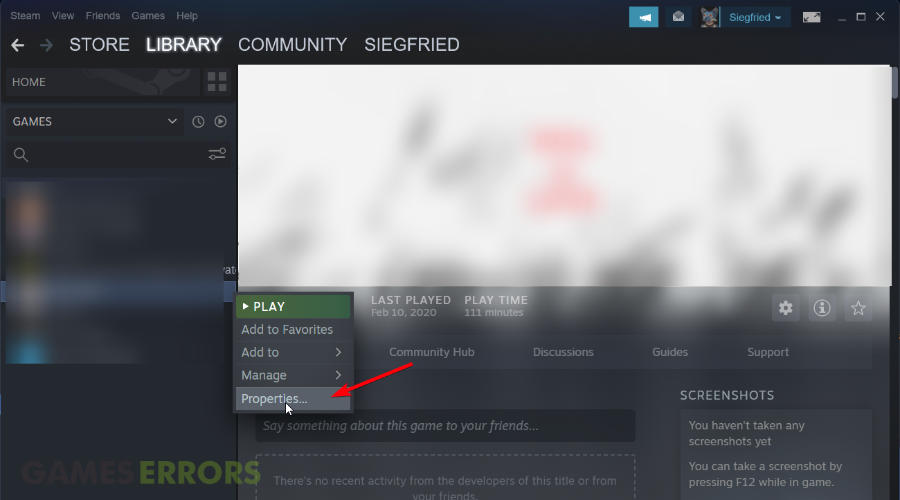
- Open the Steam client and go to Library.
- Then, right-click on the game in the library and click Properties.
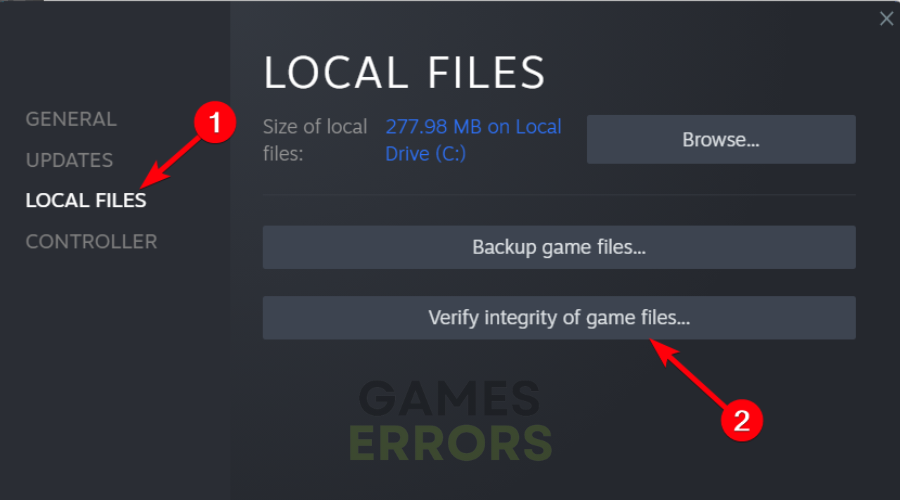
- Switch to the Local Files tab.
- Finally, click on Verify integrity of game files.
- If there are corrupted files, proceed to fix them.
3. Run the game as an administrator
Running the game as an administrator is the oldest trick in the book, but instead of doing it all the time by right-clicking it, you can just set it permanently to open with administrator rights.
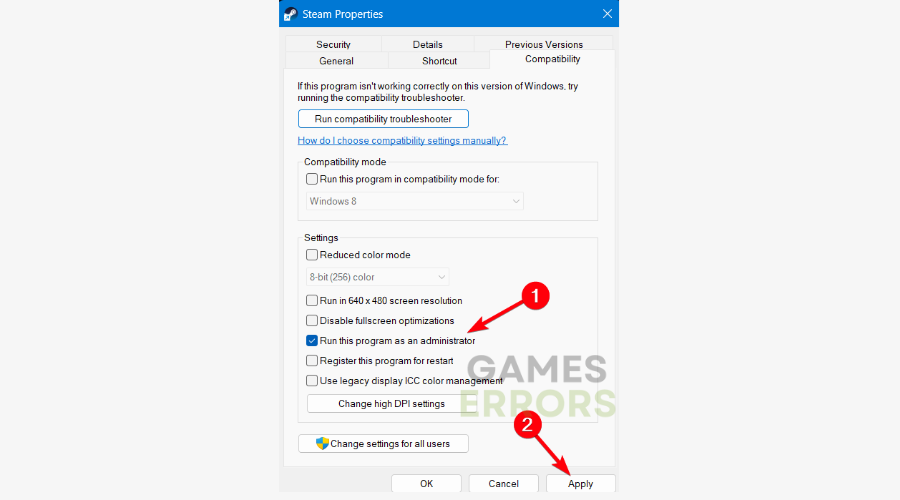
- Right-click on Steam and click Properties.
- Navigate to the Compatibility tab and check Run this program as an administrator.
- Click on the Apply button and OK to close the window.
- Open Steam and try to launch your game now.
4. Turn off antivirus protection
Your antivirus might be blocking important features of GTA 5, thus by disabling your antivirus for a few minutes might allow the game to properly launch.
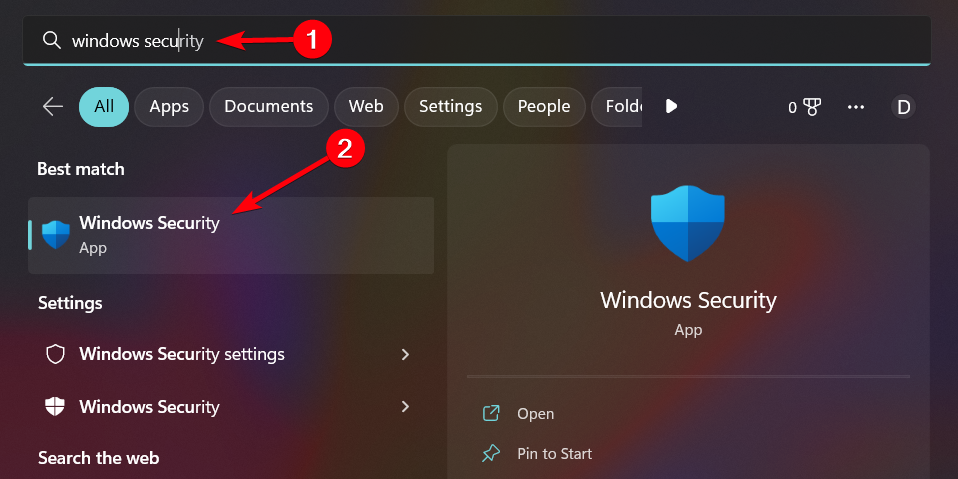
- Access Windows Security in the Windows Search box.

- Select the Virus & threat protection menu.
- Click on Manage settings and turn off Real-time protection.
- If you need to accept it, click Yes on the prompted window.
5. Disable your NVIDIA Drivers
Sometimes NVIDIA drivers are malfunctioning in concordance with your other windows drivers, thus creating compatibility errors. To get rid of this problem you can either Disable NVIDIA drivers and later reinstall them. Here’s how you can do it:
- Open Control Panel > Hardware and Sound > Device Manager or press Windows Key + R and type devmgmt.msc
- Once you opened Device Manager look for Display adapters
- Right Click on the NVIDIA driver and press Disable Device
6. Reinstall Grand Theft Auto 5
This solution might take a while, this is why it is the last one listed. However, it might be your only option to get rid of faulty game files and to be able to play the game.
- Open Control Panel > Programs
- Look for GTA 5, right click on it and press uninstall
- Additionally, to ensure that you uninstalled the game properly you can use a third party cleaning program.
🪄 BONUS Solutions that might work
In case the solutions above didn’t work out for you, make sure to check all the workarounds below:
- Verify your game cache.
- Make sure that you have the latest versions of C++ and DirectX installed on your PC.
- Verify if the program is being installed in Program Files\Rockstar Games\Social Club directory.
- If you are stuck on loading, auto-sign-in may have failed. Press the Home key and see if you can log in manually.
🔃 Social Club failed to initialize or load
In order to fix this issue follow the tips below from Rockstar: The most common cause for these errors is an incorrect installation of Social Club. If you are receiving launching bugs, we recommend uninstalling Social Club and then reinstalling it manually.
First, be sure GTAV is not running in the background. Open the Task Manager and end the following processes if they are running (right-click the process and click End Process).
- GTA5.exe
- PlayGTAV.exe
- GTAVLauncher.exe
Also, ensure you have administrator rights on your computer. Run the Social Club Installation application as an administrator by right-clicking the application and choosing “Run as Administrator.”
How to Fix GTA 5 not opening when clicking on the launcher?
In order to resolve GTA 5 not launching on the Rockstar launcher, you need to try a couple of different fixes like running the game in administrator mode or checking if the Rockstar launcher servers are up.
How to fix GTA 5 not launching Xbox One?
A practical solution to solve launching issues on Xbox One console is to power cycle your device.
- To do so, hold the Xbox button on the controller for 10 seconds, and after a short time turn it back on by pressing the Xbox button on the console.
Related Articles:
- GTA 5 Stuttering: 4 Quick Ways to Improve Performance
- GTA 5 Keeps Crashing: How to Fix It Permanently
- GTA 5 Stuck on Loading Screen: Quick Fix With Easy Steps
- Script Hook V Critical Error in GTA 5: How to Get Rid of It
- GTA 5 0xc0000142 Error [Pro Tips for Fix]
In the end, we hope that our workarounds were helpful in order to fix GTA 5 not opening issues, thus letting you enjoy this beloved gameplay.
For other questions or resolutions, you can reach out in the comments below and tell us your feedback.



Improve this guide
User forum
30 messages