
GTA V won’t launch on PC: check the edition, launcher and exact error
Many players met the GTA 5 not opening problem, so the first check should be your GPU driver ✅


 2 min. read
 Updated on
Start the game from the existing library purchase and check whether it is GTA V Enhanced or Legacy. Compare that exact version with Rockstar’s published hardware and operating-system requirements. Note whether Play opens the Rockstar launcher, the launcher asks for sign-in, or the game itself exits.
Use the first failing step
If the launcher cannot sign in, check Rockstar Launcher Authentication and the account currently linked to your storefront. If the game process opens and closes, verify the installation. If the message names an unsupported graphics device or missing component, record that wording before changing settings.
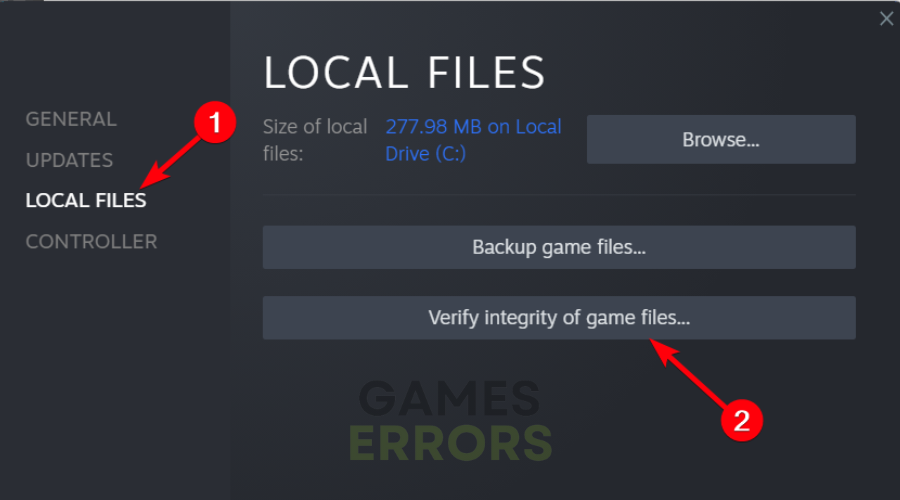
GTA Online on Steam Deck has a separate BattlEye limitation even when Story Mode can run. For a PC that meets the correct edition’s requirements, send Rockstar the build, storefront, GPU and first error. Leave antivirus protection and working system drivers enabled during these checks.
Grand Theft Auto V PC system requirements · Rockstar’s GTAV launcher troubleshooting · Verify a Rockstar Games installation · BattlEye is required to play GTA Online alert screen
Related guides
GTA 5 Stuttering · GTA 5 Keeps Crashing · GTA 5 Stuck on Loading Screen · Script Hook V Critical Error in GTA 5 · GTA 5 0xc0000142 Error
Affiliate disclosure. GamesErrors may earn a commission through PC HelpSoft. The checks described above do not require a purchase.



Improve this guide


User forum
30 messages